Traxx · Drags
Setting Up a Drag
Before you place a single checkpoint, tell Traxx what kind of track this is. That one dialog decides which tools you get.
Needs: Community Patch #4.
Step 1 — Track Components
Open Edit → Track Components. At the right of the dialog is the Type group. It now reads Circuit, Rally, Rumble, Drag and Parallel.
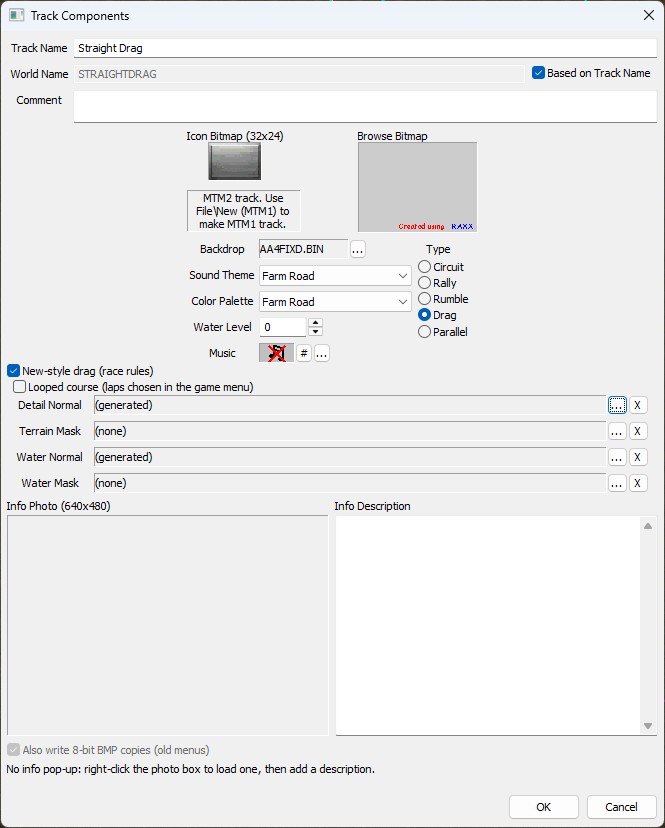
Under the Music row are the race-rules tickboxes:
- New-style drag (race rules) — live only when Drag is chosen. Tick it for everything in this group.
- Looped course (laps chosen in the game menu) — live only when Drag and New-style drag (race rules) are both ticked.
Tick Looped course when the finish line is also where you start, as on an oval: the number of laps then comes from the game menu, like a circuit. Leave it clear for a one-run drag, such as a straight strip or a J, which is always one lap. There is no lap number to type here.
Note: with Circuit or Rally chosen, the New-style drag tickbox is replaced by Split checkpoints (new builds only). That is for circuits, and Split Checkpoints & Lanes touches on it.
Step 2 — Drag, or Parallel?
- Drag, with New-style drag (race rules) ticked, gives you the staged start: pre-stage and stage beams, a launch beam, then the run. A truck that breaks the rules, or touches a wall, is disqualified.
- Parallel is two trucks side by side in a race-style start, with no staging. Its tickboxes stay grey and it has no lap control: laps come from the game menu. A wall touch adds a time penalty rather than disqualifying. See Parallel Tracks.
A plain Drag with the tickbox clear is an old-style drag. It plays as it always did and the tools in this group stay off.
Step 3 — What changes once the rules are on
After you press OK, a track with race rules (new-style drag or Parallel) behaves differently in four places:
- Object Properties. A checkpoint now shows Split, Lane and Role rows under the Cab offset rows. See Checkpoints & Roles.
- The labels. Checkpoints read CP 00 PS, CP 01 ST and so on, with a role tag.
- The Walls button. The Edit Walls button, the sixth button on the edit-mode toolbar, is live only on a new-style drag or Parallel track. It is greyed on a circuit, a rally, a rumble or an old-style drag. See Walls.
- The Course bar. In Edit Course mode the Course Tools bar reads Lane 1 and Lane 2 instead of Main (0) and 1 (an old-style drag shows these too), and its lead-in choice works. See Lanes & Lead-ins.
Tip: the walls and lead-ins you draw stay in the .TXX if you later switch the rules off. They are simply not written to the pod, and Write POD says so.
Step 4 — Changing your mind
Switching Type or unticking the tickbox is safe, but note what Traxx does to the checkpoints:
- Drag or Parallel to Rumble, to a plain Drag, or to Circuit or Rally with Split checkpoints clear: every split is cleared and each checkpoint gets its own number again.
- New-style drag to Parallel, or back: split pairs are kept.
- A per-lane pair moved onto a circuit with Split checkpoints ticked becomes an any-copy pair, because a circuit has no lanes.
See also: Components, and Checkpoints & Objects in Modern Traxx.