Traxx · Modern Traxx
Lights
A light object puts a pool of light on the ground under a lamp, and can add a visible glow and a dusty beam as well. Use it for streetlamps, floodlights, a lit sign, or a whole stadium.
Needs: Community Patch #4. A track that uses this will not load in the original game.
Step 1 — Make the light
A light is a job you give to an object, separate from the lamp you can see. The light is only the pool, glow and beam; whatever model you put under it is the fixture. Any model can carry one.
- Put a model on the track as usual (see Inserting), or use a plain box with no model if you only want the light.
- Open Object Properties and set Type to Light.
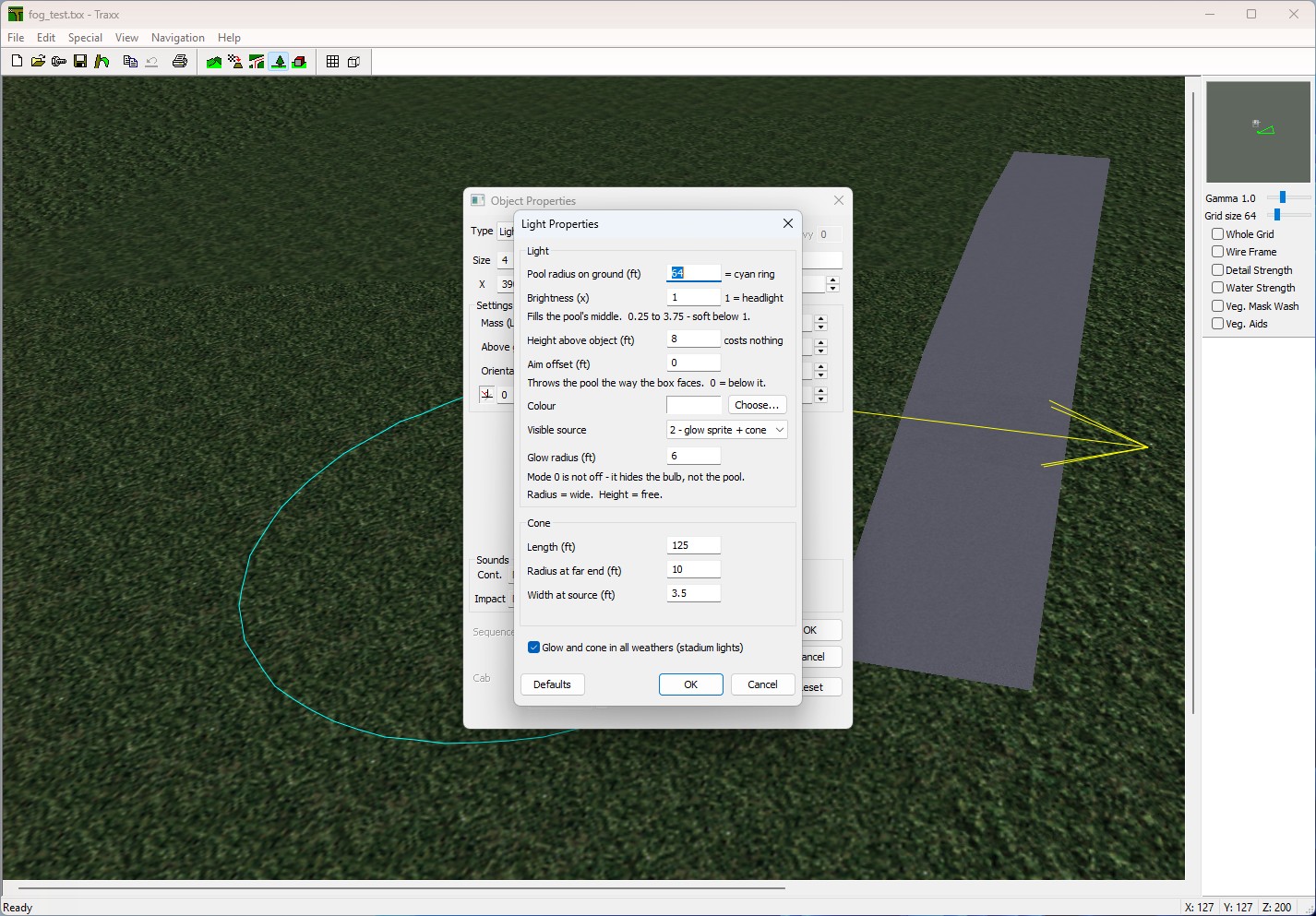
- The Light... button near the bottom of the window comes alive. Click it to open Light Properties.
The light is aimed the way the object faces, so use Orientation to point it.
Step 2 — The ground pool
In Light Properties, the top group is the pool of light on the ground:
- Pool radius on ground (ft) is how wide the pool is. It is the cyan ring Traxx draws in the 3D view while you edit. The limit is 1 to 4095 feet.
- Brightness (x) fills the middle of the pool. 1 is a truck headlight. The range is 0.25 to 3.75, and the useful part is below 1, where the light goes soft. The game rounds it to steps of a quarter.
- Height above object (ft) is how high the lamp sits. It costs nothing, but a wide radius is what makes the pool large.
- Aim offset (ft) throws the pool the way the box faces. 0 puts it straight below.
- Colour shows the colour; Choose... opens a colour picker.
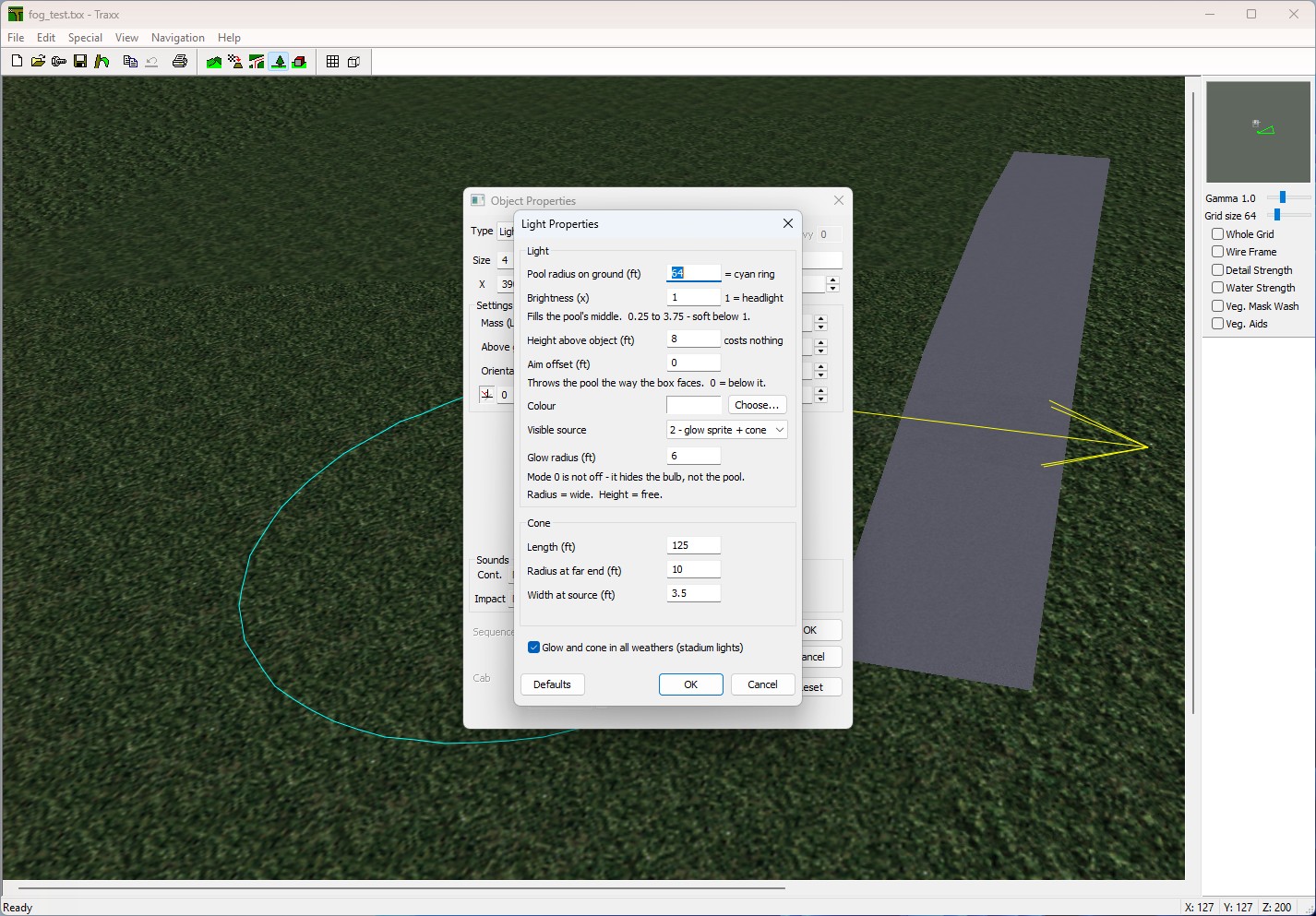
The pool only shows in Foggy, Dense fog, Rain, Dusk, Night and Pitch black. In Clear, Cloudy and Snow the game draws no pool at all. If the track's Special → Weather Mask allows none of those weathers, Traxx dims the ring and tells you.
One line in the dialog warns you about the usual traps: a radius under 1, a track with no pool weather, a track ambient so bright the rain and fog pools vanish, and pools under 32 feet on the coarse ground grid.
Step 3 — Glow and cone
Visible source chooses what is drawn at the lamp itself:
- 0 — none (still lights): no bulb and no beam, but the pool is still there. This is the default, and it is not "off".
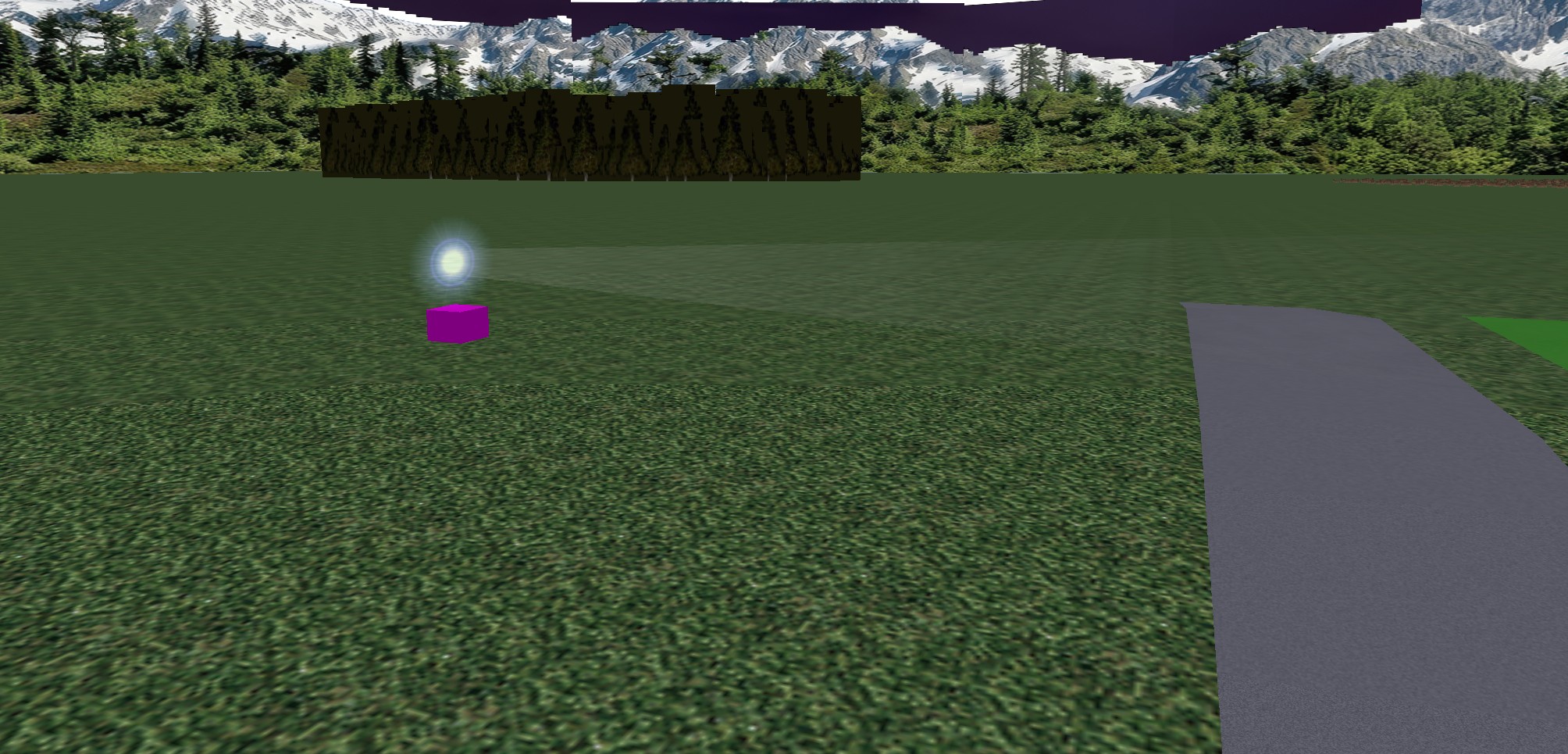
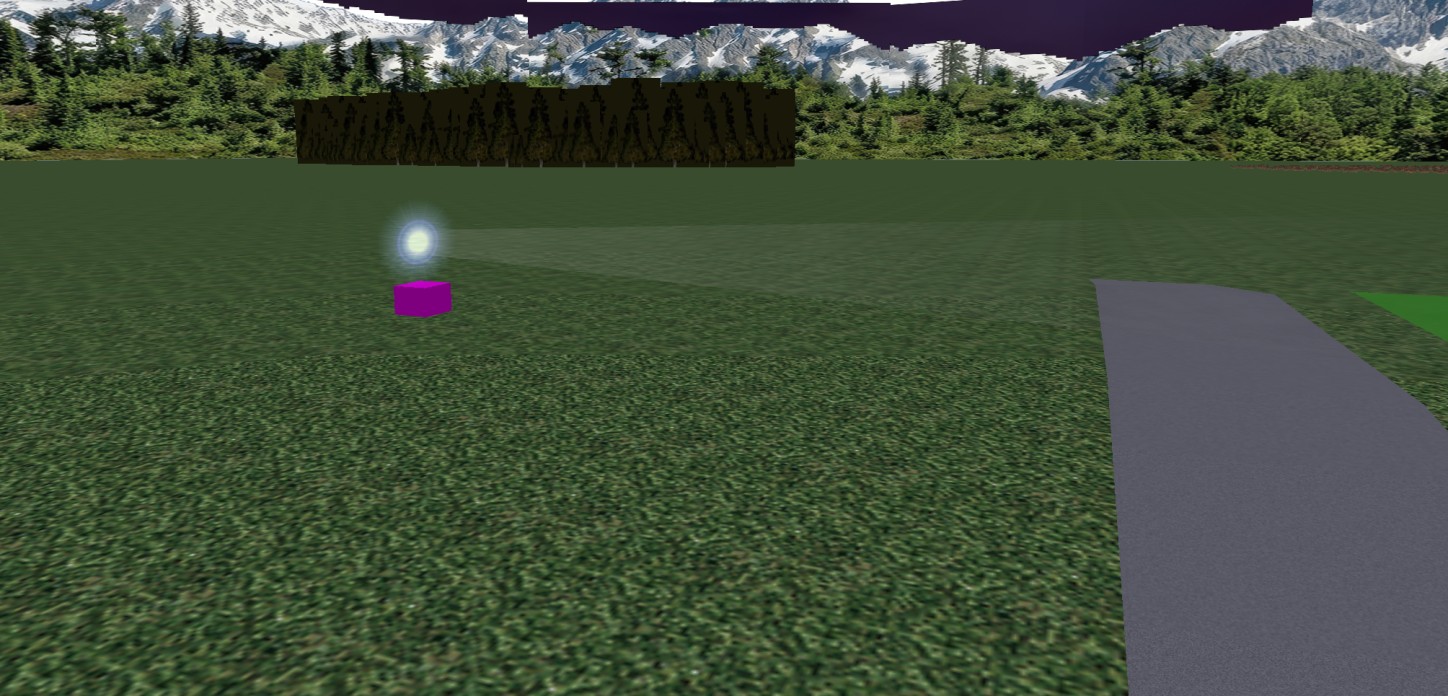
- 1 — glow sprite: a glowing flare, sized by Glow radius (ft).
- 2 — glow sprite + cone: the flare plus a dusty beam. The Cone group sets its Length (ft), its Radius at far end (ft) and its Width at source (ft) — the beam's width across where it leaves the lamp.
The glow and cone fields grey out when they do nothing at the chosen setting. Defaults puts everything back to a 64 ft pool, brightness 1, height 8, aim 0, white, no visible source, glow 6, and a cone of 125, 10 and 3.5.
Warning: a cone with a Radius at far end of 0 and a Width at source above 0 makes older versions of the game divide by zero. Traxx shows "Cone rim 0 with a base: older games divide by zero" and leaves such a cone out of the 3D view. Give it a radius above 0.
Note: the glow is a flat square facing the way the object faces (its Orientation); it does not turn to the camera. It is brightest seen head-on, fades as you walk round to the side, and is not drawn at all from behind. The cone still shows from behind.
Step 4 — Stadium lights
Normally the glow and cone only show in the same dark weathers as the pool. Tick Glow and cone in all weathers (stadium lights) and they show in Clear, Cloudy and Snow as well. The pool on the ground does not change. The box is greyed while Visible source is 0, because there is then nothing to show. Older versions of the game ignore this setting.
Step 5 — See it as the game will
All of this is in the OpenGL view.
- View → Preview Weather picks any of the nine weathers. Try Night. Which lights glow follows it.
- View → Visual Helpers → Show Light Glows (on by default) draws every light's glow and beam. It reads the game's own art, so set the Game folder on the Folders tab of View → Options first. Traxx only reads it. Without it the status bar says why nothing is drawn.
- View → Light Guide → Show Core and Extent is for the selected light. It shows where the pool is at full strength and how far up the post the light reaches, for the weather you are previewing.
Limits
- The game draws only the first 128 lights and drops the rest. Traxx itself stops you at 100, and the Lights row in View → Statistics shows the count. Write POD warns if a track has more than the game keeps.
- The game clamps a pool radius over 4095 ft, so Traxx does not take one.
Tip: place a few lights, set Night in Preview Weather, and walk the camera along the road before committing. Radius and brightness are easier to judge by eye.
See also: Inserting, Properties and placing and typing objects, Weather Mask.