
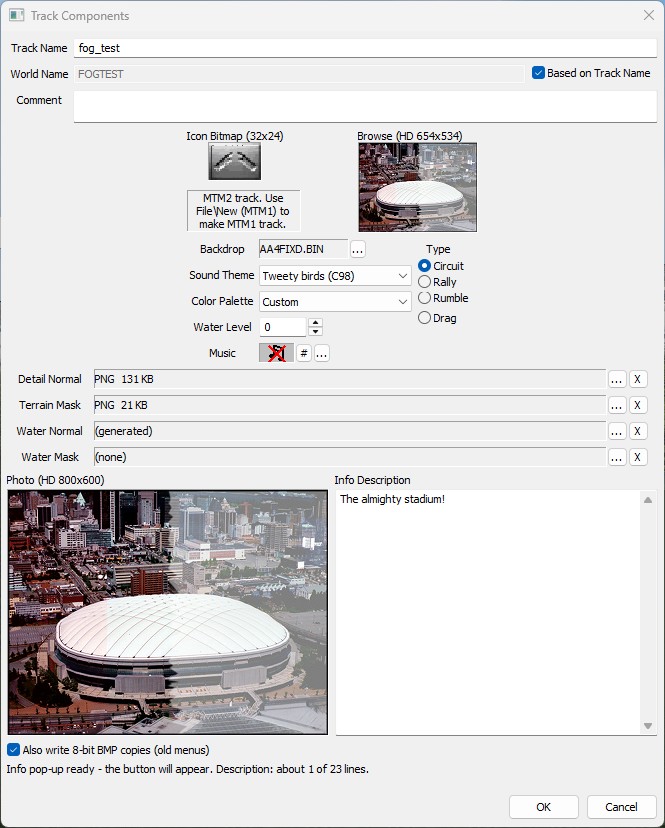
The game shows three small pictures for your track in its menus: the icon beside its name in the track list, the browse picture next to the list, and an info photo with a description. Traxx can now load all three as PNG or TGA at a much higher resolution, and it takes MP3 and Ogg music as well as WAV. You'll find it all in the Track Components box, which the old Components page introduced.
Needs: Community Patch #4.
Note: the original game still reads the old 8-bit BMP pictures, and Traxx makes those for you (Step 3). The HD pictures are drawn only by the updated game.
Choose Edit → Track Components (or click the Components button on the toolbar). The box can be resized. Right-click any of the three picture boxes for a small menu: Copy, Paste, Load..., Stock... (the icon only) and Save As....
Once a picture is HD, its caption changes to show its real size, for example Icon (HD 128x96), Browse (HD 1028x840) or Photo (HD 1024x768).
The game fits each picture into the same box whatever its size, so a bigger file lands in the same place, only sharper. What you must keep is the old shape. Traxx checks when you choose the picture, and tells you why if it refuses:
Why the icon stops at 128: the game takes any larger "icon" for a track photo, and shows the race-type icon instead. Some older tracks list their big preview photo as their icon, which is how that rule came about.
Note: one pixel of rounding is allowed. A 1024-wide browse picture should be 837 high, and 836 is accepted too.
Note: plain 8-bit BMPs keep their old rules: an icon BMP can be at most 48 pixels on a side, and an info photo BMP must be exactly 640x480.
When you choose an HD picture, Traxx also makes the classic 8-bit BMP from it, so the original game's menu still has something to show. The tickbox near the bottom of Track Components controls whether those go into the pod:
Also write 8-bit BMP copies (old menus)
It is ticked by default, and greyed out until a picture is HD. Untick it for a leaner pod. The track is still listed and playable everywhere; only the old menus lose that picture.
Load an Info Photo (640x480) and type something in Info Description. The game shows an info button on the track screen only when you have given it both the photo and some text. The line under the boxes tells you where you stand, for example "Photo set. Add a description too, or no button appears."
The same line counts how much of the description fits ("Description: about 6 of 14 lines."). The pop-up has room for only so many lines, and the game reads at most 4095 bytes of text. Past either limit the end is simply not shown. Traxx tells you when you press OK, and asks if you want to save it anyway.
Tip: the first line of the description is drawn as a heading, so make it the name of the place.
The Track Name is what players see. The World Name, just below it, is the short name your track's files are built from. By default Based on Track Name is ticked, and the World Name follows the name as you type it, so you see the file name before you press OK.
Untick the box and the field is yours. Use it to give a long track name a short file name. Letters and digits only, in capitals, up to 18 characters, with at least one letter or digit. Once you have chosen it, it is kept through any later rename of the track.
The Music row has three ways in. Right-click its picture for Load... and Save As.... The # button opens Stock Music, the game's own tracks. The ... button opens a file window titled Load music (WAV, MP3 or OGG).
MP3 and Ogg Vorbis files go into the pod just as they are. Traxx tells them apart by what is inside the file, not by its name. An Ogg file must hold Vorbis audio, and Traxx says so if it holds Opus or FLAC instead. Convert those to Ogg Vorbis first.
Community Patch #4 plays MP3 and Ogg. Nobody has tested what the original game does with them: at best it ignores the file, at worst it crashes.
Tip: if the track has to run in the original game, use a WAV.
See also: Components, Writing the Pod.
| << HD Textures << | >> Detail Maps >> |
