
Special → Lighting now lets you put the sun anywhere in the sky, not just in one of five places, and shows you what the ground and a test cube will look like as you drag it. This page replaces the old Lighting page.
The old Lighting page had Sun Pos radio buttons (N, E, S, W, Noon) and four sliders: Dark, Bright, Alt. Bias and Shadow. None of those controls exist any more. In their place there are two things the game itself uses: where the sun is, and how much ambient light there is.
Note: if you re-light an old track with a preset, the ground will look different from how old Traxx lit it. Traxx now bakes the ground's light and shade with the game's own formula, so what you see here is what the game will do.
Choose Special → Lighting. The Lighting window opens, and you can resize it. The pad, the preview squares and the cube all grow with it.
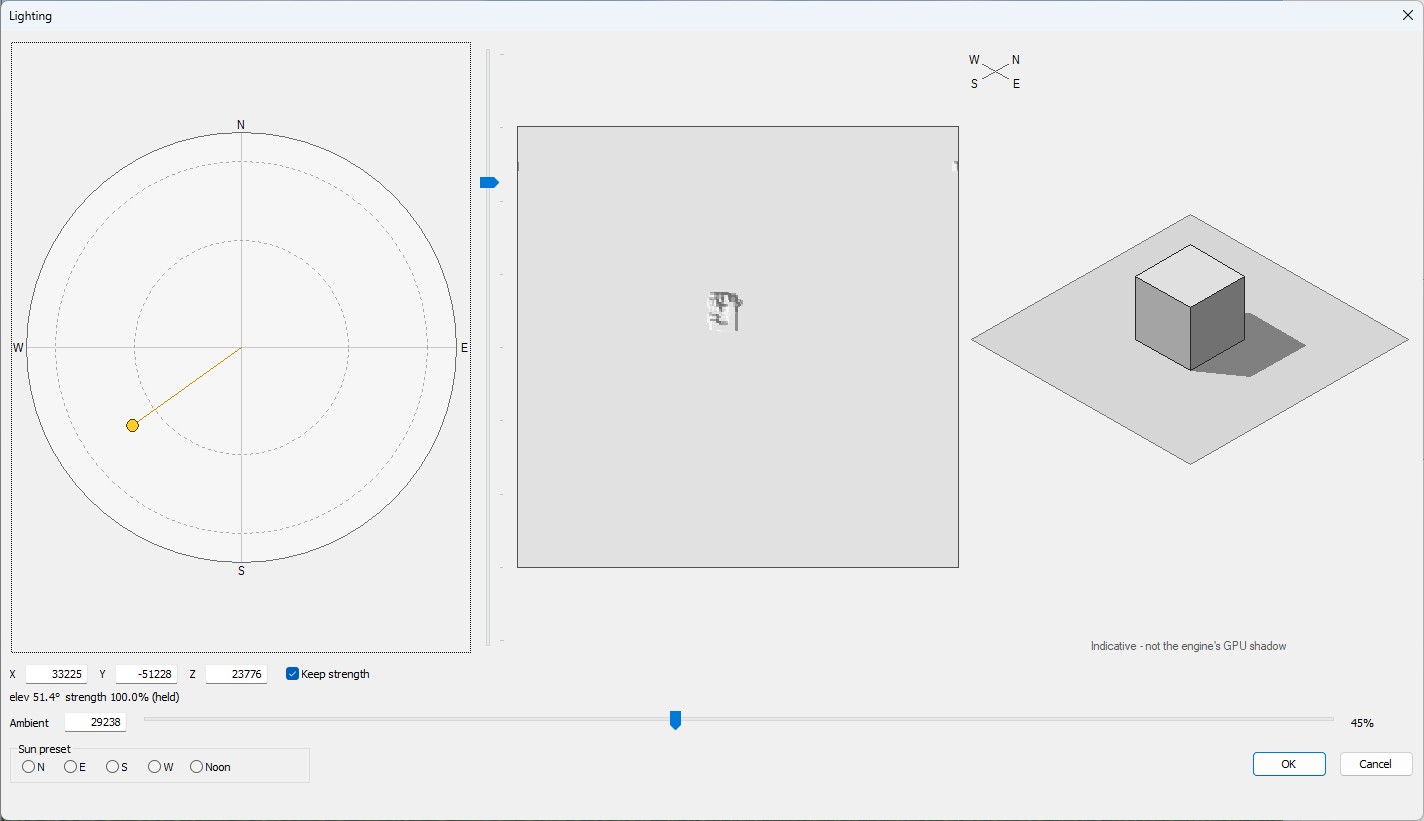
elev 24.0° strength 100.0%. It adds a note if the sun is below the horizon, stronger than 100%, or the ambient value is out of range.The Ambient box and slider set how bright the shade is, from 0 up to 65535, with a percentage beside it. Less ambient makes darker shadows and a more dramatic track. More makes it flat and soft.
The Sun preset buttons N, E, S, W and Noon are only starting points. If the sun is not already exactly on that preset, Traxx asks first: "Reset the sun position to the W preset?" Answer Yes to replace it. The ambient is never changed by a preset. A preset button is ticked only when the sun is exactly on it.
The terrain square shows your own track's ground as Traxx will bake it. The cube shows a cube on the ground with the sun's light on each face and its shadow. The cube is labelled "Indicative — not the engine's GPU shadow", and it is: use it to judge direction and length, not exact darkness.
Press OK to keep the new sun and re-light the ground. Cancel changes nothing.
We want the track lit by a low sun in the west, so every post and fence throws a long shadow across the road.
elev 20° to 25°. As a guide, X of about 60000 with Y of about -26000 and Z of 0 gives a sun just under 24 degrees up.Tip: a low sun also makes the ground's fine detail relief stand out more, if the track has a detail map. A sun at noon makes it nearly vanish.
In the OpenGL view, View → Visual Helpers → Show Sun (on by default) draws two markers:
They are not in the same place, so use the ring when you are judging shadows. Terrain in front of the disc hides it, and it is not drawn when the sun is at or below the horizon. The sky behind it needs the Game folder set; see Setting Up.
A track that has never had its lighting set carries Traxx's own default sun and ambient, and shipping those is the commonest reason a track looks flat. So the dialog shows "Warning: sun and ambient equal Traxx's defaults, not values from this track" at the bottom while that is true. Write POD asks about it too: "Write the POD anyway?" Answer No, fix the lighting, and write again. Once you answer Yes, it does not ask again until you next open the track.
Note: in the game, Night, Dusk and Pitch black change the sun's strength and set their own ambient, so set this dialog for daytime.
Note: opening a .SIT or .SI2 file used to throw away its sun and ambient and put Traxx's defaults in their place. It keeps them now.
See also: the old page, Weather Mask, Writing the Pod.
| << Waterfalls << | >> Lights >> |
