
Before any of the new features, Traxx needs to know where your art and models live, where the game is installed, and which view you want to work in. This page walks through the one window that holds all of it: View → Options.
Nothing has changed about how simple this is. Make a folder, unzip Traxx into it, run it. The zip holds Traxx.exe and a short README, and that is all: since version 1.7.1 Traxx carries everything it needs, so the MFC DLLs the old Set up page asks for are not needed any more. There are no support files, and OpenGL, which the new view uses, is part of Windows.
Open View → Options and click the Folders tab.
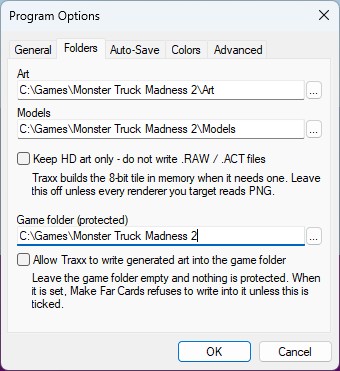
.BIN models.Both start out as folders called Art and Models beside Traxx. The first time you run it, if they are missing, Traxx asks in a Folder(s) Not Found window whether to create them for you; answer Yes. You can point them somewhere else with the ... buttons. If you type a folder that does not exist and press OK, Traxx asks whether to create it.
The old Set up page explains why this matters, and it is still true.
You do not have to set it. Without it everything else works; the sky is a plain colour and light glows are not drawn, and the status bar at the bottom of the window tells you so.
Note: the Game folder is also a safety net. While it is set, the tool that makes far cards for forests (see Vegetation) refuses to write into it, unless you tick Allow Traxx to write generated art into the game folder underneath. Leave that alone unless you know why.
.RAW and .ACT copy beside it. Tick this and it keeps them in memory instead. Leave it off unless every game you build for reads PNG. The HD Textures page has the whole story.The General tab has the choice that changes the most: Use OpenGL Renderer.
A fresh Traxx starts with the original software view. Tick this box for the OpenGL view, which is the one the new pages assume. Most of what is new — the sky, fog, lights, detail maps, the see-through water — is drawn in the OpenGL view only, and the matching menu items are greyed out in the software view. The Modern View lists exactly what changes.
Under Display Resolution you can still pick 640 x 480, 800 x 600, 1024 x 768 or 1920 x 1080. The last choice, Window Size, is new: the 3D view simply fills the window, so you can resize or maximise Traxx and keep working. It always uses OpenGL (the checkbox ticks itself and greys out), and Traxx reopens at the size you left it.
The rest of the General tab — the Always Show boxes, Show Water and Show Backdrop (keys F5 to F9), and the Software Render Quality slider — is as Options describes. Auto-Save and Colors are unchanged too.
This tab is new. Everything on it is a small switch; none of it changes your track.
Tip: you can change these any time; press OK and the view redraws at once.
See also: Set up, Program Options.
| << What's New << | >> The Modern View >> |
