
The computer trucks follow course lines, as on any track. On a drag or a Parallel track each truck has a lane, and each lane has its own line.
Needs: Community Patch #4.
Switch to Edit Course mode. The Course Tools bar shows the course radios. On a circuit they read Main (0), 1, 2, 3 and 4. On a drag or Parallel track they read Lane 1, Lane 2, 2, 3 and 4, and the tickbox reads Always show lanes instead of Always show main.
Draw them as the old course pages describe (Insert Course, Set Course). Your lines carry any crossover: the game adds none of its own.
Lane 1 is drawn red and Lane 2 in the track's own palette entry, magenta on stock tracks. Both show when Always show lanes is ticked. Otherwise only the selected one shows. Each line is labelled Lane 1 or Lane 2 at its start.
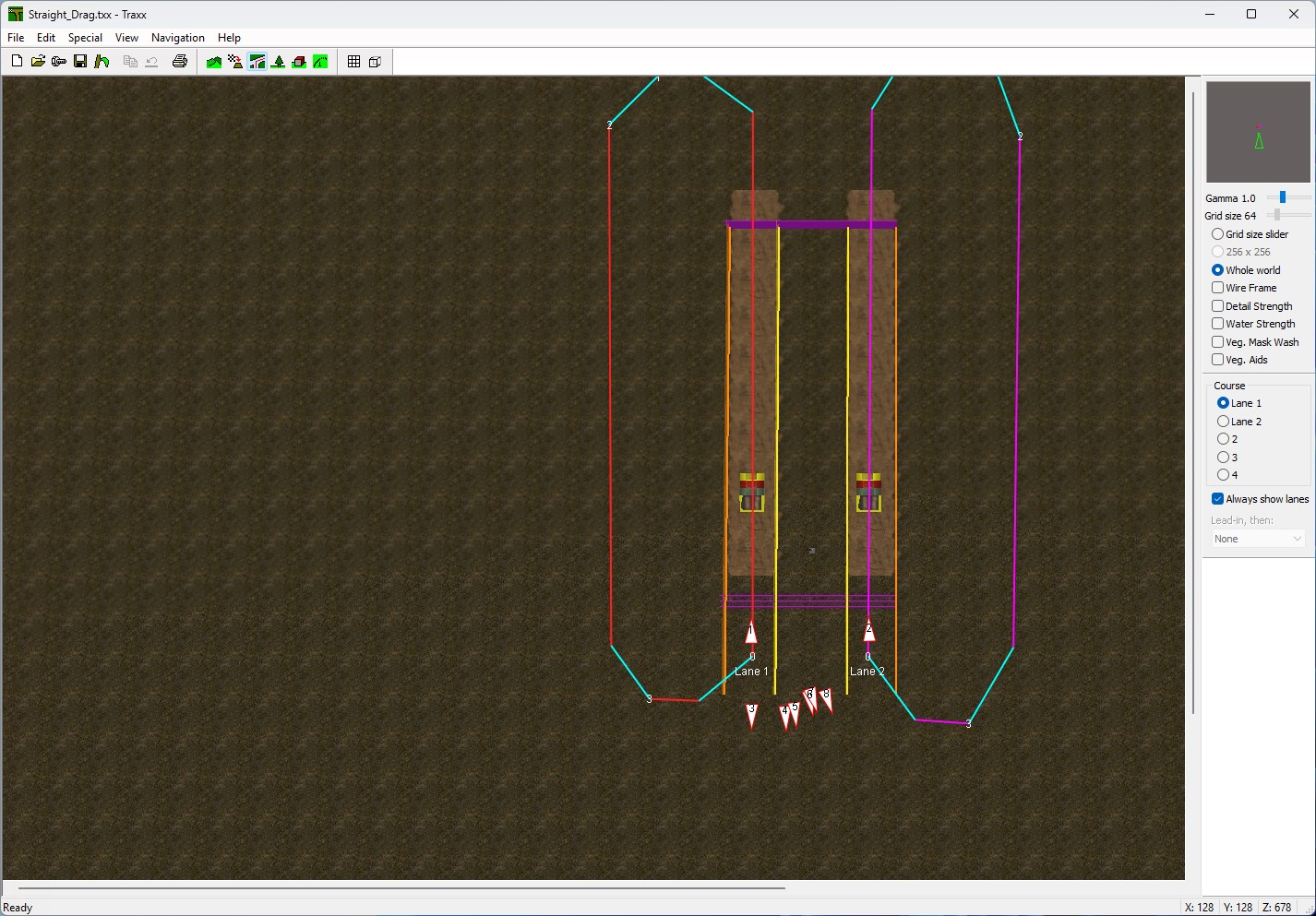
Note: courses 2, 3 and 4 are free on a drag. Traxx draws the selected one in green, so it is never mistaken for Lane 2.
On a paperclip or an oval the trucks start inside the loop. The line you want them to run is the loop itself, but their start is somewhere else. A lead-in is a short line that begins at the start, is driven once, and then hands the truck over to its lane's line. The truck never returns to the lead-in.
Each lane can have one lead-in.
The line is labelled Lead-in -> Lane 1 (or Lane 2) at its start. The box is greyed when Lane 1 or Lane 2 itself is selected, and works for courses 2 to 4 only.
If another course already leads to that lane, the lead-in moves to the new one. The status bar says "Lane 1's lead-in moved here from another course." and the old course shows None.
Tip: the PaperClip Drag template gives each lane a one-segment lead-in on courses 2 and 3.
On a track with race rules off, the box still shows a stale lead-in so you can clear it with None. Choosing Lane 1 or Lane 2 is refused, with "Lead-ins need new-style drag or Parallel race rules." Such a line is labelled "(rules off)", and Write POD warns that it will not be in the pod.
Each computer truck takes the lane it is given at the start. If its lane has a lead-in it drives that once, then its lane's line for the rest of the race. If not, it drives the lane's line from the start.
Write POD warns about a lead-in course with no segments, and about a lead-in whose lane has no line.
See also: Insert Course, Set Course, course lines, and Checkpoints & Roles.
| << Walls << | >> Straight Drag >> |
