
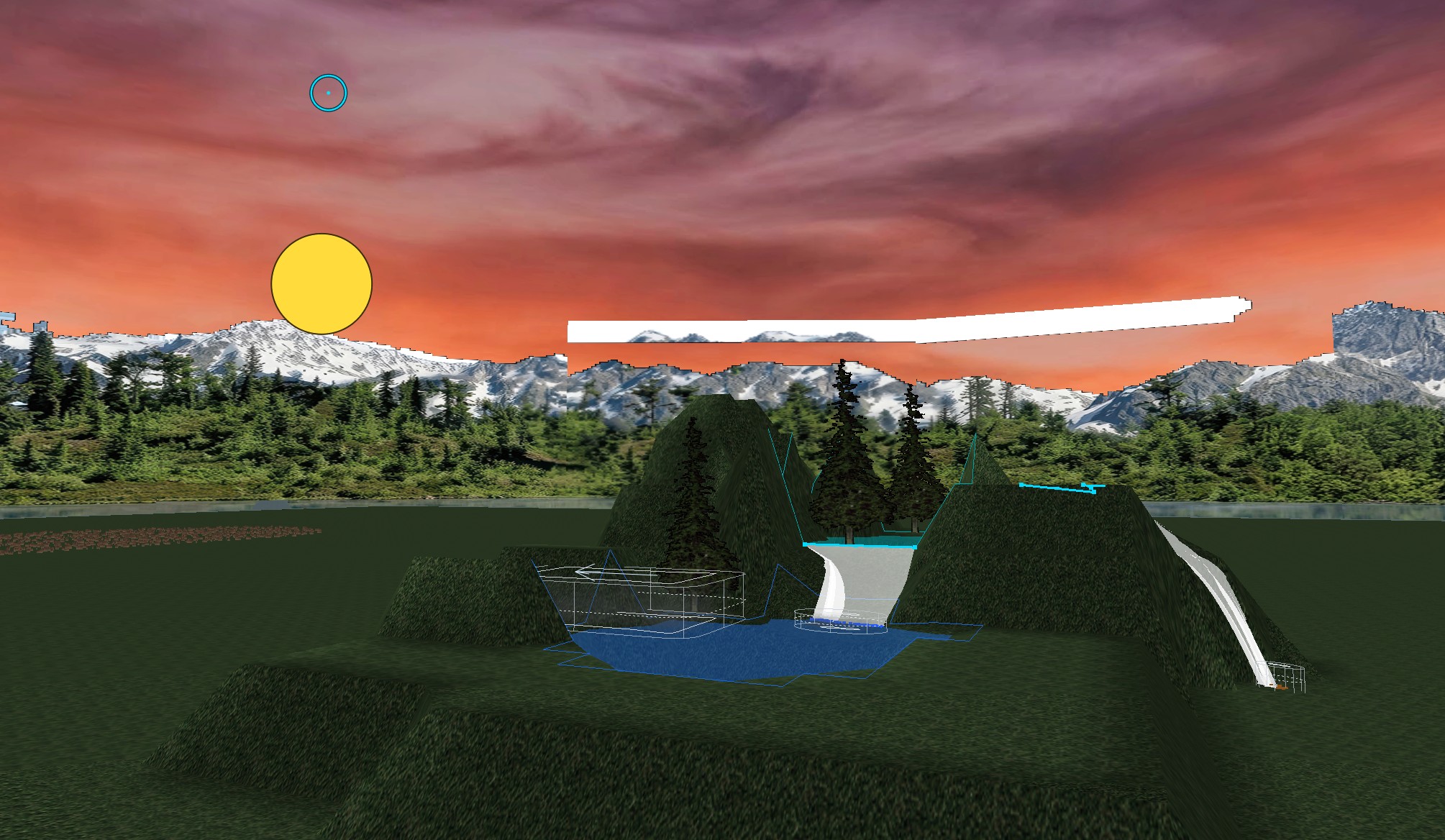
The 3D view is where you will spend your time, and it has changed more than anything else. You can see the whole map at once, draw the game's own sky, preview any of the nine weathers, and switch on helpers that show what the game will draw. None of it changes your track; it only changes what you see while you build it.
Traxx has two views: the original software view, and the OpenGL view you switched on under View → Options → General (see Setting Up). Both edit the same track. The OpenGL view is the one with everything new in it. In the software view these View items are greyed out: Show Sun, Show Sky, Show Light Glows, Show Detail Maps, Show Detail Strength, Show Water Strength, Draw All Fog Volumes, Field of View, and the whole Vegetation submenu.

The software view only ever drew a window of terrain around the camera, as wide as the Grid size slider allowed. You never saw all 256 x 256 tiles at once, at any setting.
Open the View Control bar (View → View Control Bar) and tick Whole Grid. In the OpenGL view the entire map is drawn, wherever the camera is, so you can judge the shape of the track and find things without flying to them. The Grid size slider greys out while Whole Grid is on.
Note: in the software view the grid is held to 128 tiles however high the slider goes, so Whole Grid is an OpenGL feature.
The rest of the bar:
The view used to get wider as the window got bigger — about 124 degrees on a full-HD screen — so the world seemed to swell as the camera turned. View → Field of View fixes that: 50, 60, 70 (the default), 80 or 90 degrees, measured across the longer side of the window. Legacy (follows window size) brings the old behaviour back. OpenGL view only.
View → Visual Helpers holds the switches for what the OpenGL view draws on top of your track. One line each, with the page that explains it:
Elsewhere: View → Light Guide → Show Core and Extent shows where a selected light's pool is at full strength and how high it reaches (Lights), and the View → Vegetation submenu has the tree, grass and lake-wall switches (Vegetation, Lakes).
Note: with Show Sky on, Traxx follows the game and draws no backdrop picture in the weathers where the game draws none.
View → Preview Weather has nine choices: Clear, Cloudy, Foggy, Dense fog, Rain, Snow, Dusk, Night and Pitch black.
One choice drives everything weather-dependent in the view at once: the sky, the fog colour, which fog objects appear, and which lights glow. It is a preview only: nothing about it is stored in your track.
In the game the map wraps: drive off one edge and you arrive at the opposite one. To let you build across that seam, the OpenGL view shows a tinted band, three tiles deep, past each edge. It is a copy of the far side — terrain, textures, water, lakes and objects — and it updates as you edit.
The band is read-only: clicks on it do nothing. Ground boxes are not copied into it, and it is not drawn in the wire frame view.
View → Statistics opens Track Statistics, the old box of counts against limits, now with the new limits: 1024 textures, 4096 models and model textures, 4096 scenery objects, 2048 ground boxes, 249 course segments, 512 sounds, and 100 each for ramps, moving objects and lights. New is the Fog slots (game max 64, shared) group: fog objects and waterfall mist share the 64 slots, and the total is shown.
Tip: Help → Keyboard Summary shows every key, including the ones the new pages add.
See also: The Grid, Getting Around, Keyboard, Statistics.
| << Setting Up << | >> Many at Once >> |
