
A fog object is a patch of mist you place anywhere on the track: lake mist, valley fog, a haze in a quarry. The track's own weather fog is everywhere at once; this one lies only where you put it.
Needs: Community Patch #4. A track that uses this will not load in the original game.
For our example we'll put a bank of fog over a lake in a valley, so the mist lies on the water and runs up into the hillsides.
The fog has to be a box with no model. Traxx will refuse to turn a box that has a model into fog; if you need to, set the object to Ramp first, which clears the model, then to Fog. Or just place a new box.
Set Type to Fog. The Fog... button beside Light... comes alive. The box's own Size fields are the fog's volume, so make it bigger than the valley: wider and longer than the lake, with some of it overlapping the hills.
Fog runs into hillsides. It stops where it meets ground, water or an object, so a valley fog is simply a box bigger than the valley, with its top at the height you want the fog to reach. Use Above ground to raise or lower the box.
Click Fog... to open Fog Properties.
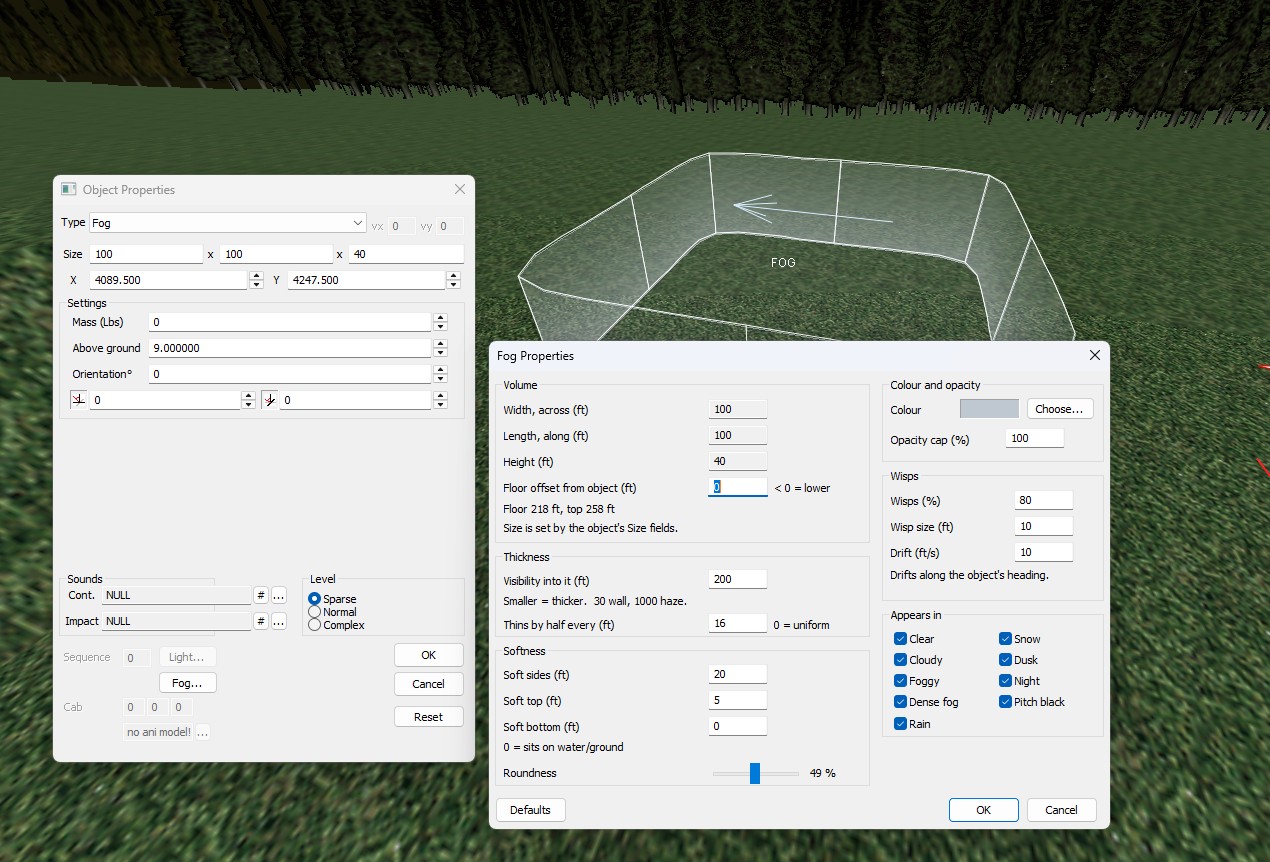
The top-left group, Volume, shows Width, across (ft), Length, along (ft) and Height (ft), which are read-only because the Size fields set them. Floor offset from object (ft) moves the floor up, or down if you use a negative number. A line beneath reads Floor 96 ft, top 136 ft: the real heights of the floor and the top. That is the line to watch when you want the fog to reach a given level.
Thickness:
Softness:
For lake mist we might try a visibility of 300, thinning by half every 8 feet, and soft sides of 20.
Defaults puts every field back to a new fog's values. Press OK when you are done.
In the OpenGL view the fog is drawn with the game's own density: how it thins with height, its soft edges and rounding, and its wisps, in whichever weather View → Preview Weather is set to. A fog that is not ticked for that weather is not drawn. The volume is labelled FOG, with an arrow if its wisps drift, and Traxx also draws an outline where the soft edge begins and a dashed loop where the density has halved. Edits in the dialog show live.
Like the game, Traxx draws only the nearest 16 fog volumes at a time. View → Visual Helpers → Draw All Fog Volumes shows all of them, which can be slower.
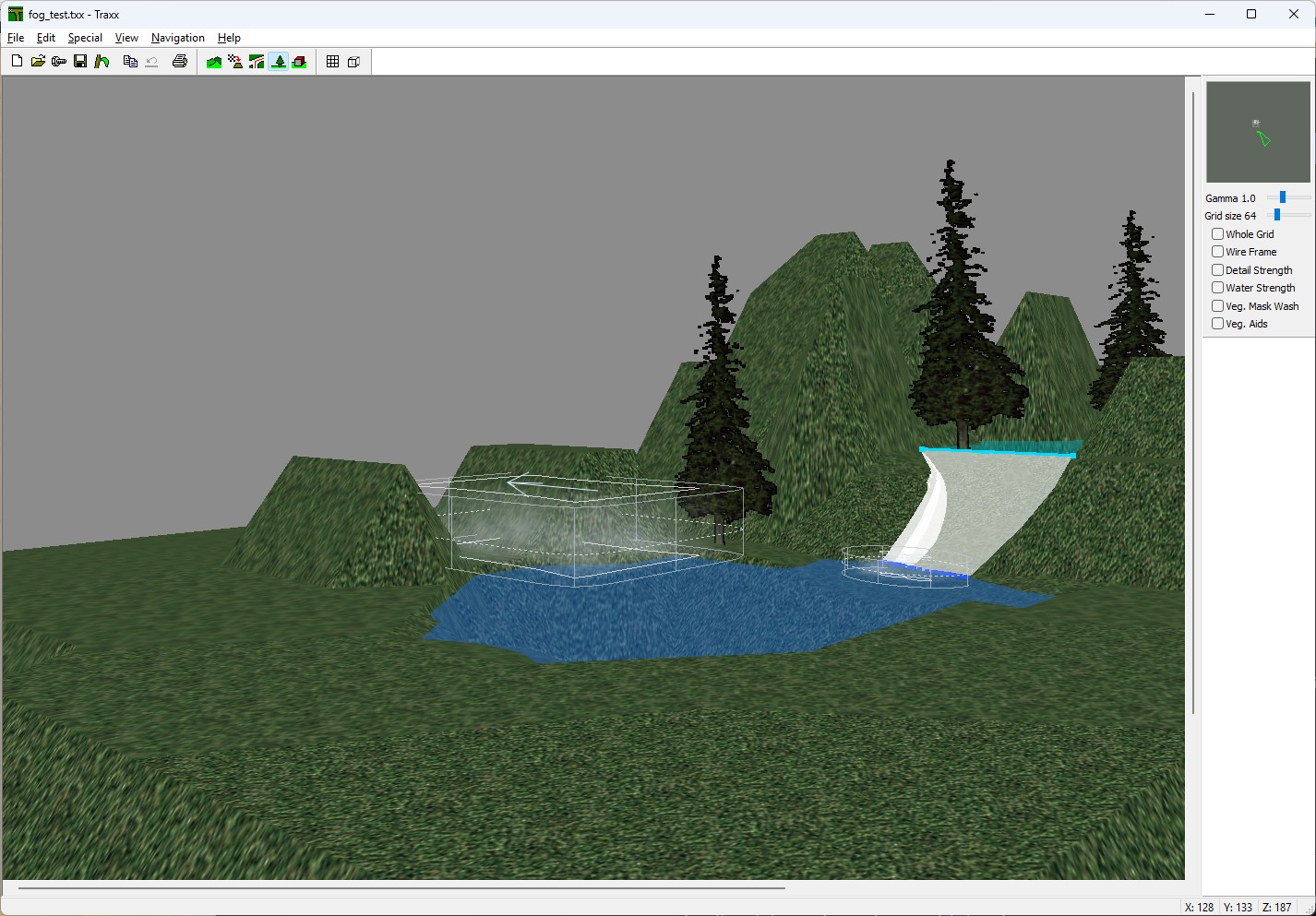
In the game, the fog box itself is never drawn — only its mist is — and it is solid to nothing: trucks and the computer drivers go straight through, and it casts no shadow.
A track can have 64 fog slots, and waterfall mist uses some of them: each waterfall landing takes one. View → Statistics shows Fog boxes, Waterfall mist and the Total out of 64. Write POD warns past 64, and the game drops the mist that does not fit. A fog object also counts against the ordinary scenery-object limit.
Tip: if a fog looks too faint, lower Visibility into it before reaching for the Opacity cap.
See also: Water Level, Weather Mask.
| << Lights << | >> Vegetation >> |
