
The second tab is what C-PODINI did, and it answers one question: what is actually in my install?
Press Analyze and it reports the pods in your load order and how many are enabled, the total files and size, how many tracks and trucks you have and how many of those are switched on, and how much of it is stock content PodZip could strip. If the load order names a pod that is not there, or one that cannot be read, it says so rather than skipping it quietly.
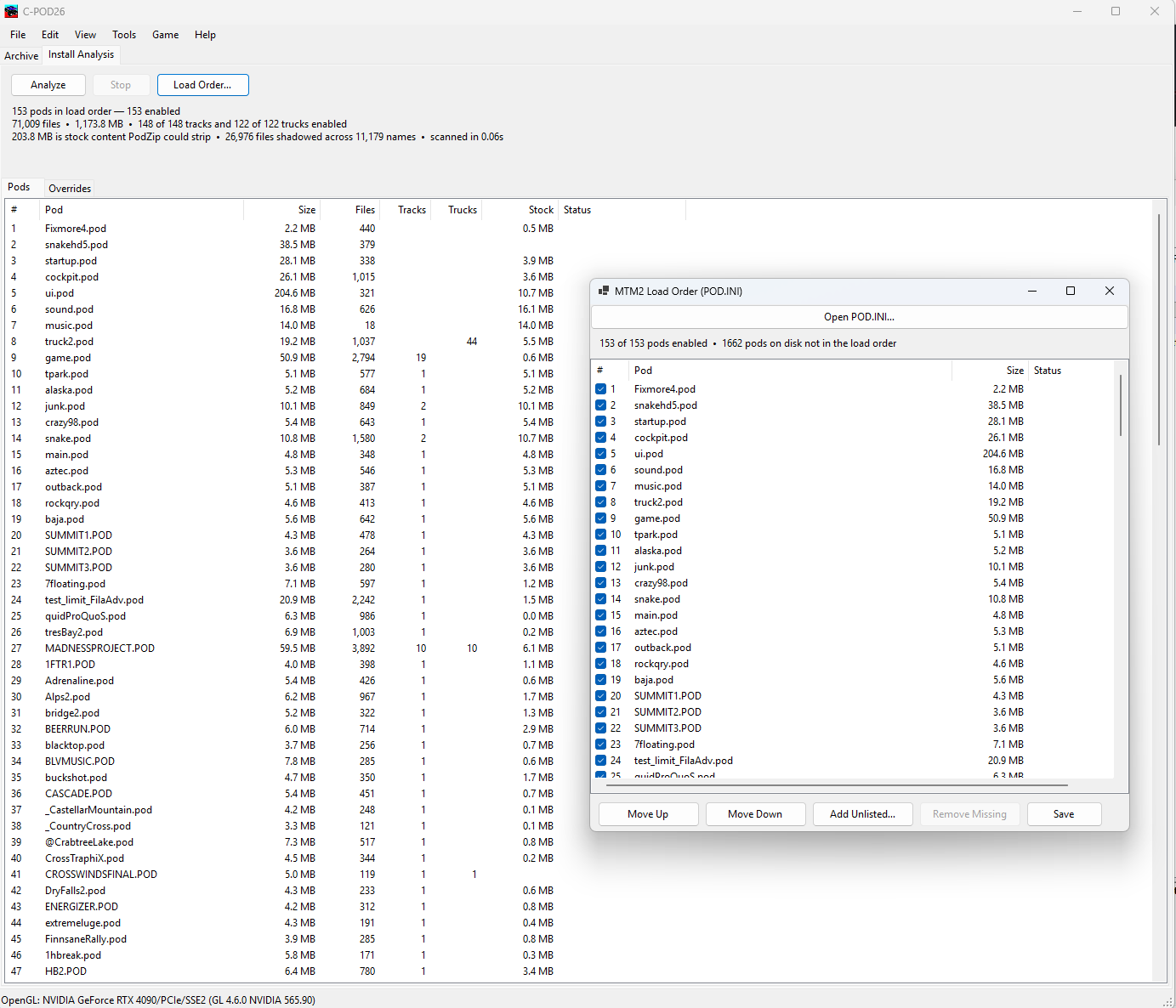
Each pod gets a row — its position in the load order, size, file count, tracks, trucks, how much of it is stock, and its status. Double-click any pod to open it in the Archive tab.
MTM2 resolves a filename through the mounted pods in load order and takes the first hit. So the same name in two pods means the later copy is never read. That is invisible from inside any single pod, which is exactly why it belongs here beside the load order rather than in the archive editor.
On a large install it adds up. The install above is 153 pods and 71,009 files, and carries 26,976 shadowed files across 11,179 names — more than a third of every file in it is a copy something else already answers for. The list shows the name, which pod wins, how many are shadowed and which they are. The first 500 names are listed, because the tail is all one-deep duplicates that tell you nothing; the count above reports the whole picture regardless.
A disabled pod is not mounted, so it neither wins nor is shadowed.
Load Order opens your pod.ini for editing — the
other half of the same question: what is mounted, and in what order. Tick a pod
to enable it, Move Up and Move Down to change who wins an override,
and Save to write it back.
Two buttons answer the mismatches. Add Unlisted picks up pods sitting on disk that the load order never mentions — the install above has 1,662 of them, which is a lot of content installed and not mounted. Remove Missing does the opposite, dropping entries whose file is gone.
