
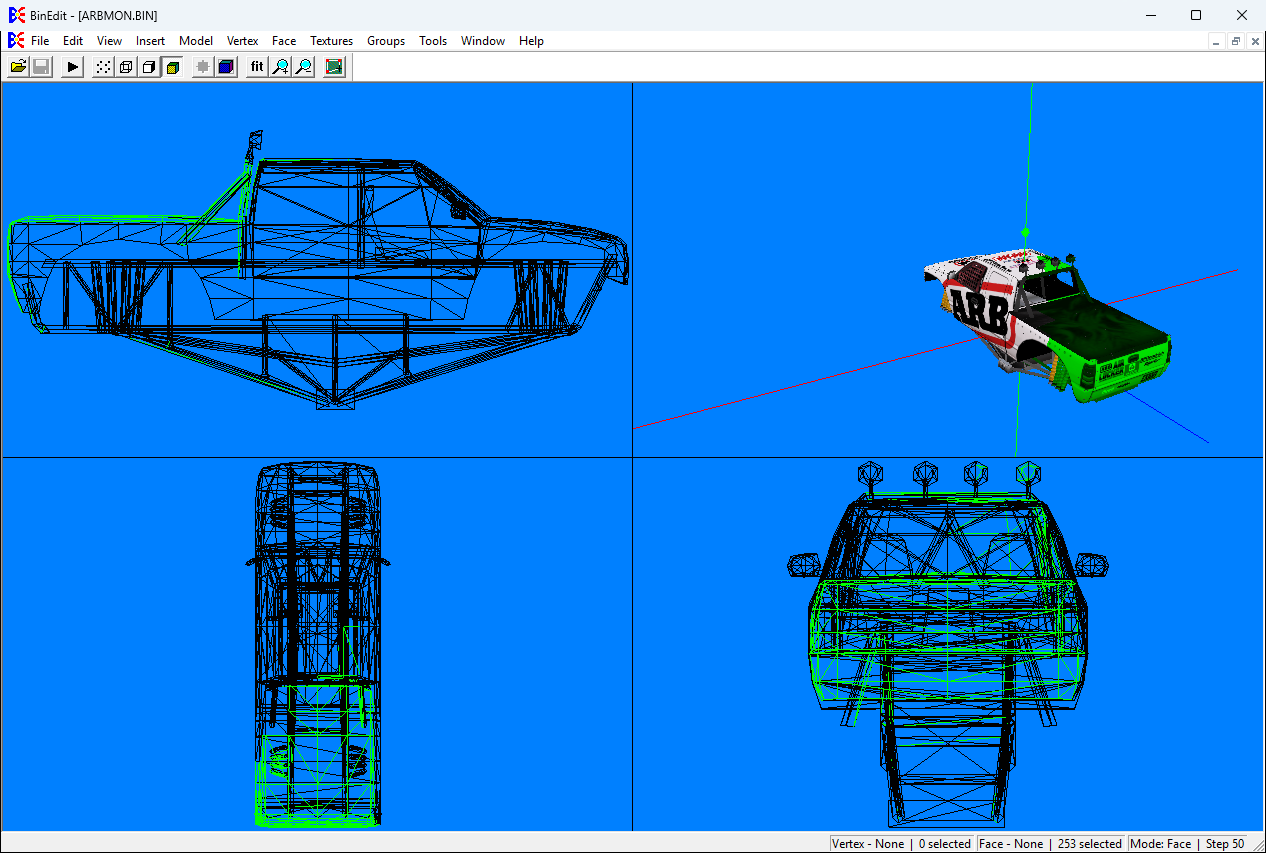
Each model opens in its own window inside BinEdit. Open several and arrange them from the Window menu (Cascade, Tile Horizontally, Tile Vertically). Window → New Window gives you a second view of the same model, with its own camera, handy for watching the back while you work on the front.
You can also drag a .bin from Explorer onto BinEdit to open it.
By default a model window is split in four:
| Pane | Shows |
| Top right | The real 3D view. This is where you click, select and grab. |
| Top left | Side view (Z across, Y up). |
| Bottom left | Top view (X across, Z up). |
| Bottom right | Front view (X across, Y up). |
The three flat views are wireframes that always fit the whole model. Selected faces are green and the current face is white. They're for looking only: clicks there don't select anything.
The bottom of the window always tells you where you are:
The left part of the status bar shows menu help, and confirmations such as "Material applied to 12 faces."
A model with unsaved changes has a \* after its name in the title bar. It goes away when you save, or when you undo back to the saved state.
View → Toggle Browse Window opens a small list of every .bin in your Model folder. Click a name to open it. Tick Open In Active Window to have each click replace the model you're looking at. It's a quick way to flip through a folder of props.
| << Setup & Preferences | Getting Around >> |
