
Traxx can open any track inside a pod and let you look at it: the terrain, the objects, the lakes, the lot. But a pod you only *view* is read-only, and until now the only way to change a track that existed as nothing but a pod — Chicago, a download, one of your own old pods — was to unpack it by hand. File → Edit This Track... does it in one step: it turns the track you are viewing into an editable copy of itself.
The pod itself is never changed. You get a new, unsaved track to work on, and a new name for it.
Choose File → View POD file... and pick the pod. If it holds more than one track, a Select Track window asks which. The track opens in the view, view only: the brushes do nothing, and Save, Save As and Write POD are greyed out.
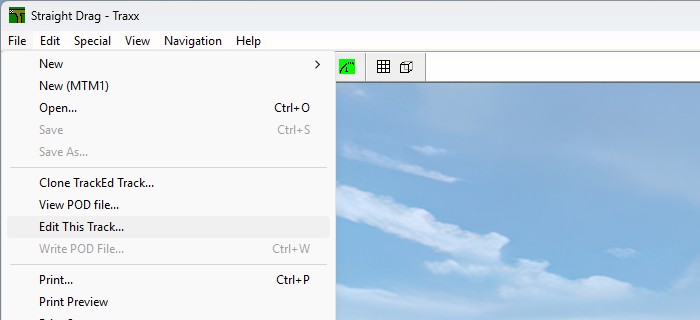
Note: Edit This Track is greyed out on a new track or one you opened with File → Open. It lives for exactly one situation: a pod open for viewing.
Choose File → Edit This Track.... Traxx asks:
Make an editable copy of "Chicago"? It tells you what it will do: copy the pod's textures and models into your Art and Models folders (it never replaces a file already there), give the track a new name, and leave the pod alone. Press Yes.
Before it can do that Traxx must know where those folders are. If they are not set, it stops with Set your Art and Models folders first and changes nothing. Set them under View → Options on the Folders tab (see Setting Up) and try again.
When it finishes, a window tells you: This is now an editable track, saved under the new name ... when you Write POD, with the new file name (CHICAGO2, say) in place of the dots. That is the moment it changes from a view into a track.
The track you were looking at is now just like one you had opened and not yet saved:
.TXX name, and closing it asks whether to save..TXX before you do anything else you would hate to lose.
Traxx never overwrites. If a file the pod needs is already in your Art or Models folder, Traxx keeps yours. When your file and the pod's are different, the final message says so and lists the names:
These files were already in your folders with different contents. Write POD and the reopened .TXX will use your copies, not the pod's:
This matters because from now on the track uses what is in your folders. If the list holds a texture you did not expect, close the track without saving, move your copy out of the way, and do it again. A long list is cut short: the last line reads "and N more".
Save the .TXX, edit as you would any track, and File → Write POD File... when you are done. The new pod carries the new name, so it sits beside the original in the game's track list: both are there, and both play.
Tip: Write POD to a name of your own, not over the pod you started from.
Edit → Extract Models and Art is still there while a pod is open for viewing. It does only the copying: it asks This will dump all models and textures from the current file into the Traxx Art/Models folders. Proceed? and does it, without making the track editable. It lists differing files afterwards in the same way. Use it when you only want the art, or a .TXX you were given needs the textures from its pod (see Extracting).
See also: Extracting, Pods & Tracks, Writing the Pod.
| << Vegetation << | >> Writing the Pod (New) >> |
