
Old drags made walls out of checkpoint boxes, one short box after another. A new-style drag has real walls: a line drawn along the ground, curved if you like, with a height. They do not use up your checkpoint limit.
Needs: Community Patch #4.
Note: walls are drawn and edited in the OpenGL view only.
Choose Edit Walls, the sixth button on the edit-mode toolbar. The button is live only on a new-style drag or a Parallel track (see Setting Up a Drag). The other modes' bars disappear and Walls mode shows no bar of its own.
Walls show as a translucent ribbon from the ground up to the wall's height, with a line along its foot: orange for Outside, yellow for Inside, white for None. View → Visual Helpers → Show Walls hides and shows them in every mode.
In Walls mode the points show as white dots, and each wall's name stands over its first point.
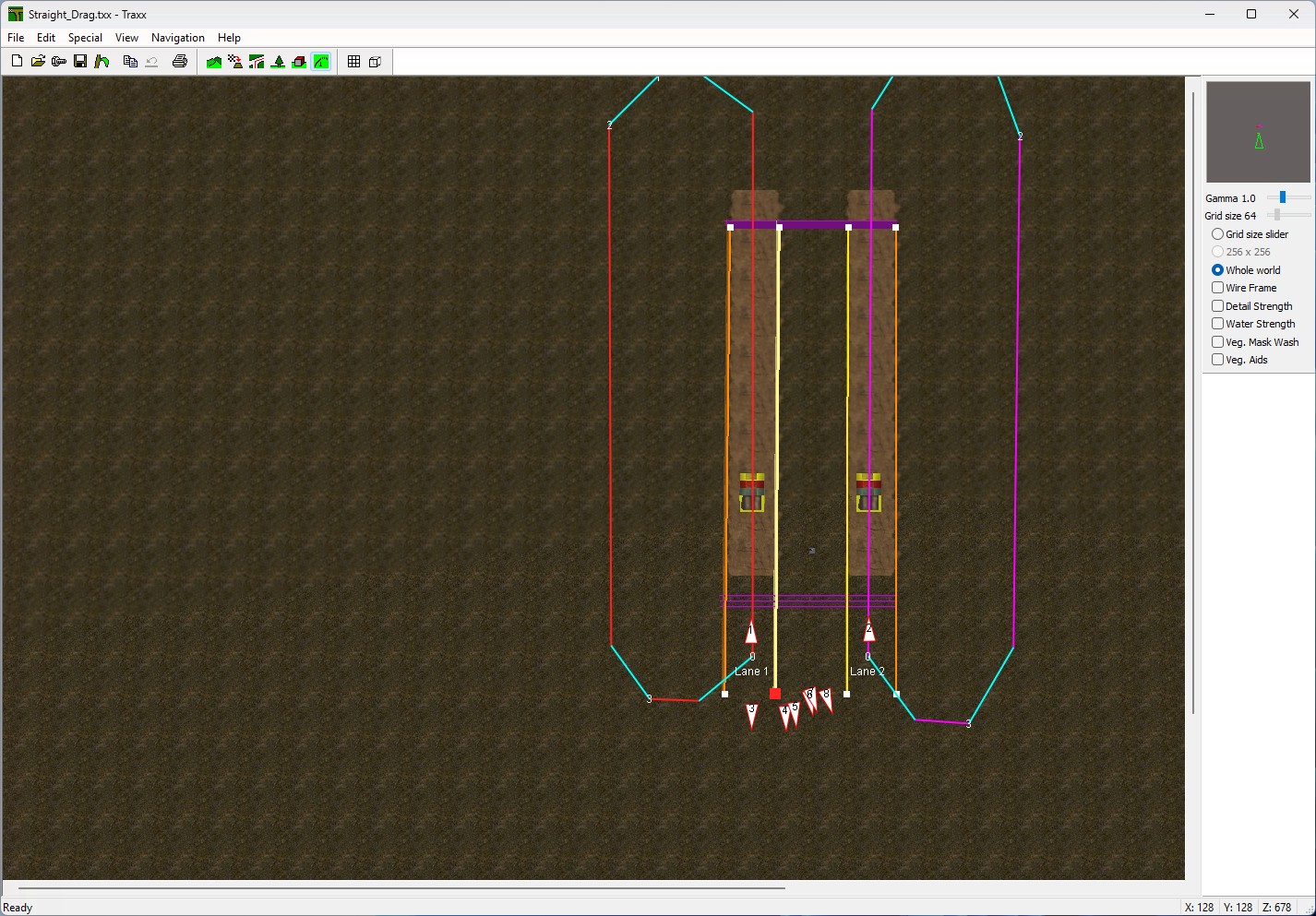
Treat the clicks as a rough draft. A track holds up to 64 walls, with 1024 points each.
Hover a point and drag it to move it. The right-click menu also has Insert Point After, Delete Point, Wall Properties... and Delete Wall. Double-click a point to open its wall's properties. Edit → Undo takes back the last change.
The Wall window stays open beside the view, and you can keep moving the camera with the keyboard while it is up. Its settings:
The Points list shows each point as number: X, Z, bend, above ground, with ", gap" if the stretch after it is open. Select a point, then change its X (ft) and Z (ft), its Bend (ft) and its Above ground (ft). The view updates as you type. Delete point removes the selected point.
Bend bows the stretch after the point sideways. It can be at most half the stretch; Traxx cuts it back and says so. The same bend is sharper on a short stretch and gentler on a long one.
Gap after this point opens the stretch that starts at the point: no wall there. That is how the paperclip's entry is left open.
The Problems box lists anything wrong with the wall, and reads "No problems." when it is good.
You do not have to rely on the mouse. The Shapes box builds a wall from numbers. For our example, an oval:
Left turns left as you see it on the map and the top-down view; Right turns right. A 180 degree arc adds one point.
A wall stands on the terrain under each point, plus that point's Above ground value, and rises by its Height. Walls do not stand on objects by themselves.
Where the lanes cross, the crossing can be flat, a bridge or a jump: that is your choice. A flat crossing can lead to direct hits between the trucks, which isn't really allowed in drags, but you are free to build it any way you want. On a crossover bridge, give the wall on the deck an Above ground equal to the deck's height. Keep the wall underneath lower than the gap to the deck. Then a truck on the bridge cannot touch the wall below, and the other way round.
A wall belongs to no lane. Any truck that touches one is caught.
OK keeps everything and counts as one undo step. Cancel puts the wall back exactly as it was.
Note: Write POD names any wall that breaks a rule: fewer than 2 points (3 if closed), no thickness or height, a stretch over 4096 ft, a wall that leaves the world, or more than 1024 points once the wall is cut into pieces of about 8 ft.
See also: Check Points.
| << Split Checkpoints & Lanes << | >> Lanes & Lead-ins >> |
