
A split checkpoint is one checkpoint that stands on more than one box. On a drag it is how two trucks get a start and a finish each, so that, on a Chicago oval, they can start half a lap apart.
Needs: Community Patch #4.
In Object Properties, a checkpoint's Split row offers:
Each truck is given a lane at the start of the race, and keeps it.
For our example we'll give the finish line a copy for each lane.
The Role text still reads "Finish", with the same "of" count as before: you have not added a checkpoint. Both boxes now share one number, and their labels read CP 03 FIN L1 and CP 03 FIN L2.
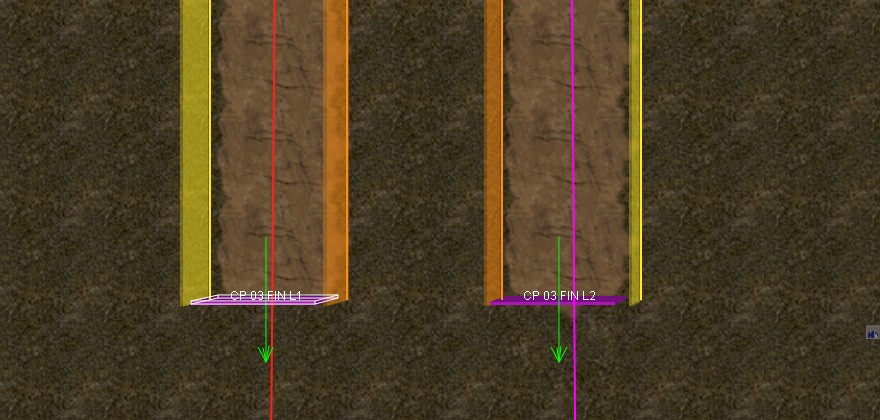
Tip: instead of typing, copy the lane 1 box with Copy Object and paste it. The pasted box joins the same checkpoint and takes the free lane, lane 2. Then move it where you want it.
Note: if you change one box of a pair to Any copy or Per lane, the other copy follows. A whole checkpoint shares one split.
If the Pre-stage, Stage and Launch checkpoints are per lane, each truck stages at its own lane's boxes. Then every other checkpoint, gates and finish included, must also be per lane, one copy for each lane. That is how a Chicago oval lets the trucks start half a lap apart, each finishing at its own start line.
The other choice is no split on the starts at all, as on a straight strip. Pre-stage, Stage and Launch can never be Any copy.
Traxx never places a copy for you, and nothing checks the spacing. Where each box stands is entirely up to you.
Any copy suits alternate routes: a gate with two boxes, one on each way round an obstacle. A gate can be Any copy on a Parallel track, or on a drag that has no per-lane starts. Open the second box, type the first one's Sequence, set Split to Any copy and press OK.
With two or more copies, a Main route (AI follows this one) tickbox appears. The overlay marks the main copy with a trailing star, CP 04 G*. The computer trucks drive through the main copy. To change it, open the other copy and tick Main route. Unticking it does nothing: one copy is always main.
Typing a number another checkpoint already has, with Split at None, does not join it: your box takes that number and the others move up by one.
If you switch race rules off in Edit → Track Components, every split is cleared and each box gets its own number, in the order they were. Turning the rules back on does not bring the splits back.
Circuits and rallies can use any-copy splits too, for alternate routes. In Edit → Track Components, with Circuit or Rally chosen, tick Split checkpoints (new builds only). Object Properties then offers None and Any copy only, with no Lane row, and every checkpoint is a Gate except the last, the Finish (labels G and FIN). Walls and lead-ins are not for circuits. See Checkpoints & Objects in Modern Traxx for the numbered checkpoints themselves.
See also: Check Points.
| << Checkpoints & Roles << | >> Walls >> |
