C-pod
(Make a POD using Drag & Drop)
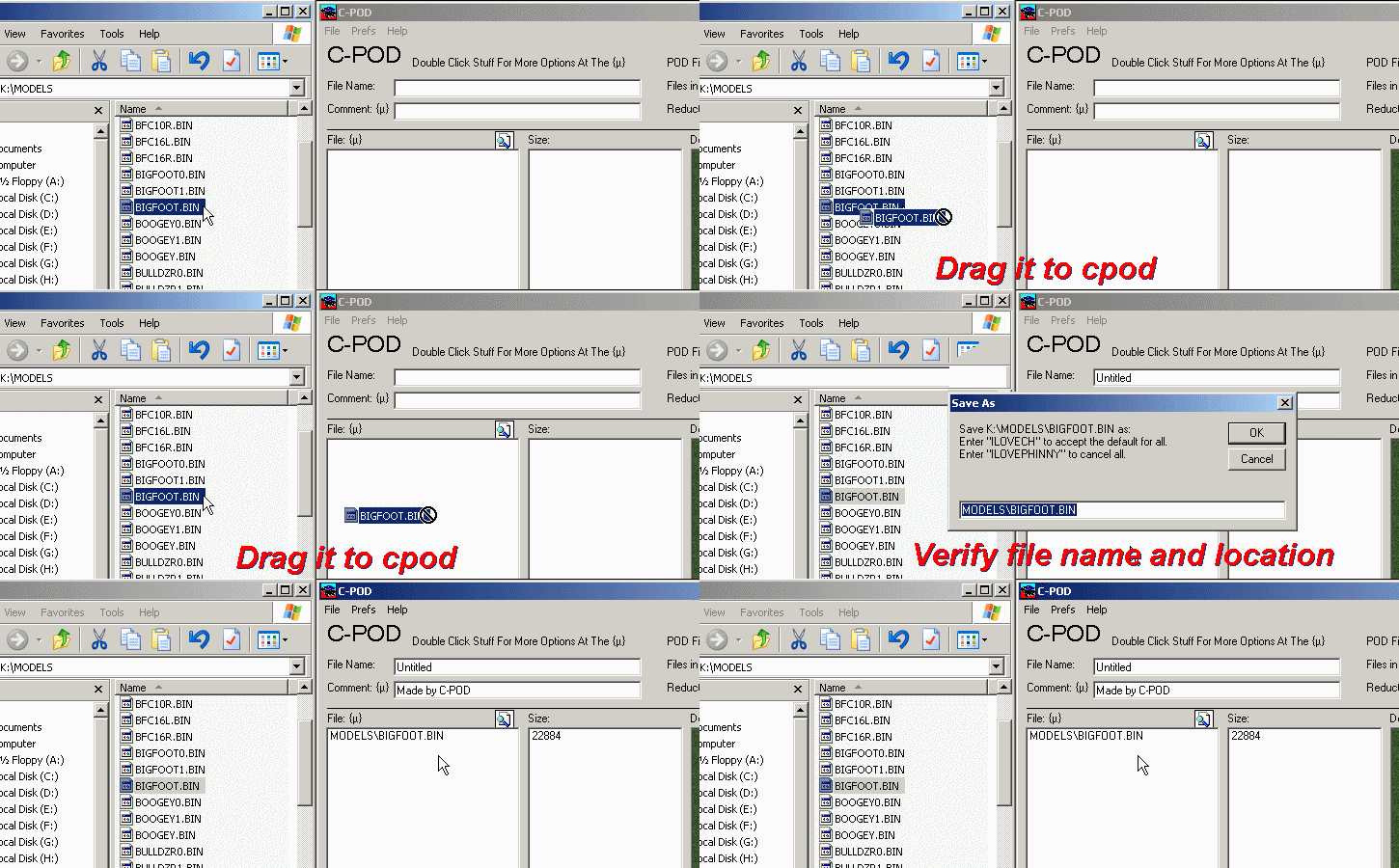
click image for animation
  You can add files to a pod using drag and drop.


  True, this wouldn't be the most efficient method for creating large
  track pods, but it's a handy dandy way to include extra, missing, or
  forgotten files.


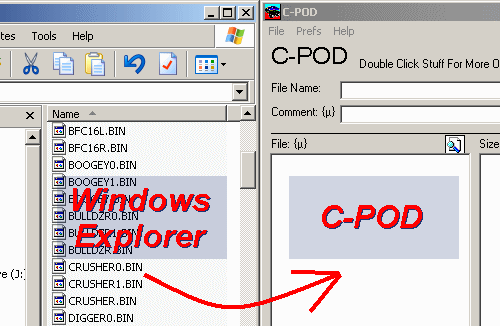
  Position windows explorer and c-pod side by side.


  Drag a file from windows explorer to the c-pod file list box.
  You will be prompted for the proper file name and folder.


  Notes


  - C-pod will try to guess the correct location.


  - Unknown file types are prompted for a MISC folder (a good thing).


  - The prompt box has special instructions to accept all default
    locations (for speed and convenience), or to cancel.


  - You cannot drag and drop folders.


  - You can drag bunches of files at the same time
    (hold ctrl then drag the mouse).


  - Upon completion, remember to edit the comment.


  - If the pod is being made from scratch, you must save when
    you're finished.  Adding files to existing pods is
    immediate, although saving for backup purposes is always
    a wise choice.


  It's that easy.
|