
Most of this page describes the 1999 install and is now wrong:
See Setup & Preferences.
Download one of the available versions of BinEdit here.
Make a folder for the program. For example, C:\Program Files\Binedit. Note, however, that it can go anywhere on any drive.
Unzip the binedit files to the folder you just made.
Double click the BINeditSGI.exe or BINeditMS.exe (depending on which flavor you downloaded). You can also make a short cut to it from the main menu or desktop.
This message will appear:
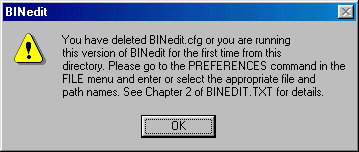 |
This is not a serious problem. It is just a reminder that you have to set up the program before it will run properly. Click OK.
If you do not have mtm2 in the default C:\ directory or you do not have the "metalcr2.act" file in it, the following message will appear:
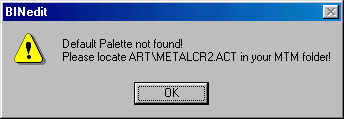 |
When you click okay, a standard windows box opens.
If you downloaded BinEdit from the mtmg site, just browse to the folder you created for it and metalcr2.act will be there. Select it, click Open and BinEdit will start.
| Note: if you did not download binedit here, you will have to download metalcr2.act (1k) first, and unzip it to a safe folder where there is no risk of it being deleted. For example, the binedit folder or the mtm2 folder. And, lastly, you will have to repeat the above step but this time browse to where you saved the file. |
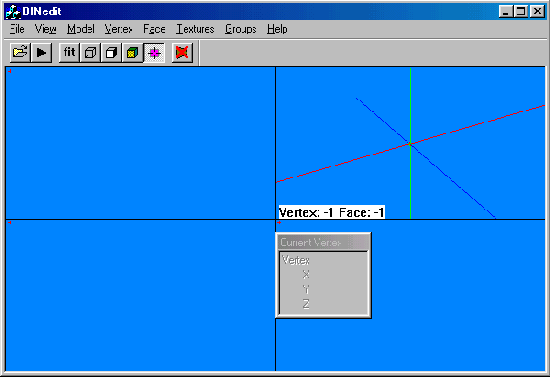
If everything is correct, the BinEdit window will look like this:
 |
| Note: BinEdit opens minimized by default. To maximize, you must either maximize the screen manually each time you run the program, or create a short cut and set properties to open maximized. |
The first thing you must do is set program preferences. Please see Preferences for more details.
| Note: The preference settings are saved in a file named BINedit.cfg in the binedit folder. Do not delete this file or you will have to repeat this procedure. |
This is probably a good time to adjust the background color to suit your own tastes.
You are now ready to use BinEdit.
