
In most cases, the faces and textures that you are mapping will not line up correctly at the beginning. Most times, you will have to do a little adjusting or tweaking to get things the way you want. This is not hard, but it helps to remember which keys do what. Let's review.
In the mapping area, the faces are marked by white lines, and the verticies are red dots on the corners (of the faces). So, using the mouse you can:
- left click on a vertex (red dot) to move it to a spot that you like.
- left click anywhere in between the faces and verticies (the empty spaces) and move the whole thing around. The size of the faces will not change unless you push it off the edge.
- "right" click anywhere in between the faces and verticies (the empty spaces) and resize the whole thing, keeping the scale proportionate to your face arrangement. This is especially handy for large, complicated models (for instance, with trucks).
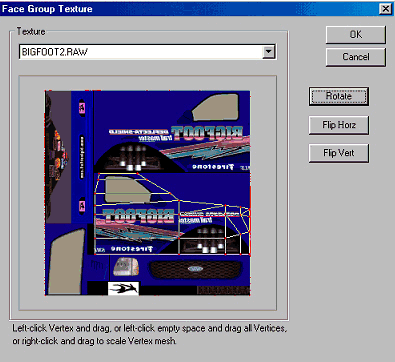 |
If you forget which mouse clicks do what, there are reminder notes at the bottom of the Face Group Texture Box.
If you think this sounds tough, stop worrying because it's not. Experiment and play with it a few times and you'll be a pro before you know it.
Graphic courtesy of Cobra911.
