
Traxx lets you build your own tracks for Monster Truck Madness, versions 1 and 2 — laying roads, buildings, checkpoints and trees in a fully rendered 3D world, with a mouse, in a world of your making.
Traxx is freeware. The full version was a paid program when it was released, and was made free in 2005. Sincere thanks to everyone who registered it over those years — you all helped make Traxx what it is.
Traxx 1.6.8
This is the same Traxx, brought forward to the modern MTM2 engine. Not a
rewrite and not a fork — Bill Purvis's editor, still opening the same
.txx files, now able to author everything the updated engine can
draw.
The newest part is the world around the track: fog that lies in valleys and over lakes, forests and grass planted from a painted map, lakes at their own heights, and models the truck drives on with their own grip. Alongside it, the things authors asked for while building real tracks — editing many objects at once, exact placement, checkpoints you can read at a glance, and HD pictures for the game's menus.
Your old work still opens, and your new work still runs. Tracks made with any earlier Traxx load in this one. Tracks made with this one still run on the original 1998 game — unless they use lights or fog objects, which need the current engine. A track with either will not load in the original game.
Vegetation, lakes and surface meshes travel in files of their own that the original game never opens, so a track using them should still load there — just without the trees, with its lake basins dry, and with ordinary grip. A track that uses none of the new features is written exactly as before.
One more choice is yours: a checkbox leaves the legacy 8-bit art out of the pod for a smaller file. Tick it and the original game will not see the track at all — it stays hidden rather than loading with broken textures. The current engine is unaffected either way.

The world around the track
All four of these need the current engine. Traxx is where they are made; the updated game is what draws them. Fog is the one that changes the promise above — a track with fog objects needs the current engine to load at all.
Fog you can place
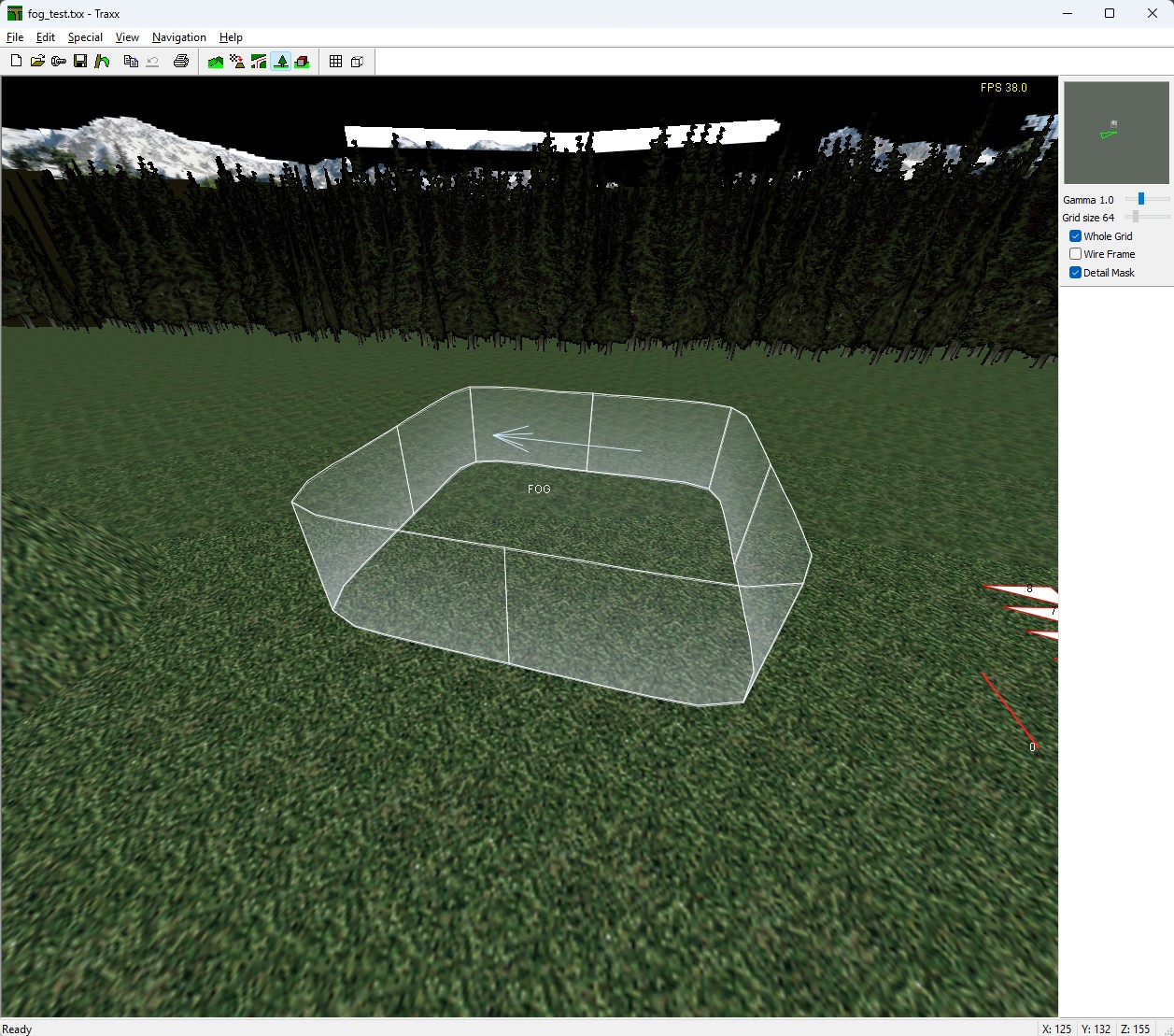
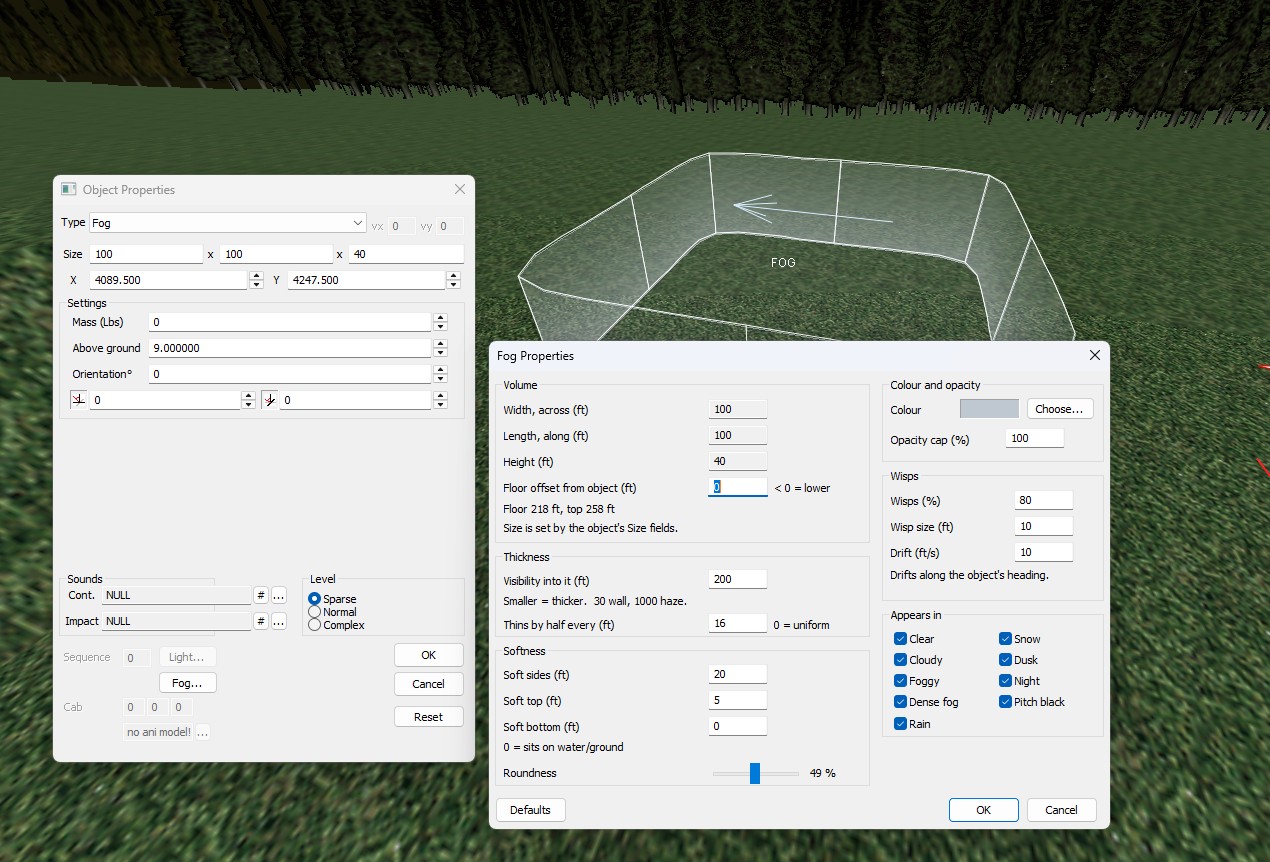
Lake mist, valley fog, a haze in a quarry — placed like any other object, where the track's own weather fog is everywhere at once. Place a plain box with no model, set its Type to Fog in Object Properties, and the box's own size is the volume. The Fog... button beside Light... opens the rest: where its floor sits, how far you can see into it (30 ft is a wall, 1000 ft a light haze), how fast it thins with height, soft sides, top and bottom, how round it is, drifting wisps, its colour, an opacity cap, and which of the nine weathers it appears in.
- Fog runs into hillsides. It stops where the view meets ground, water or an object, so a valley fog is simply a box bigger than the valley with its top at the height you want the fog to reach. The dialog shows the floor and top in feet for exactly that reason.
- One colour for every weather. The game darkens it with the scene's light, so a pale fog set once reads right at dusk and at night too.
- Seen in the 3D view as it will look — a see-through volume in its real rounded shape, labelled FOG, with an arrow when its wisps drift, updating as you edit the dialog.
- Up to 50 per track. In the game the fog itself is invisible and solid to nothing: trucks, the AI and shadows ignore it.
Forests and grass, planted from a painted map
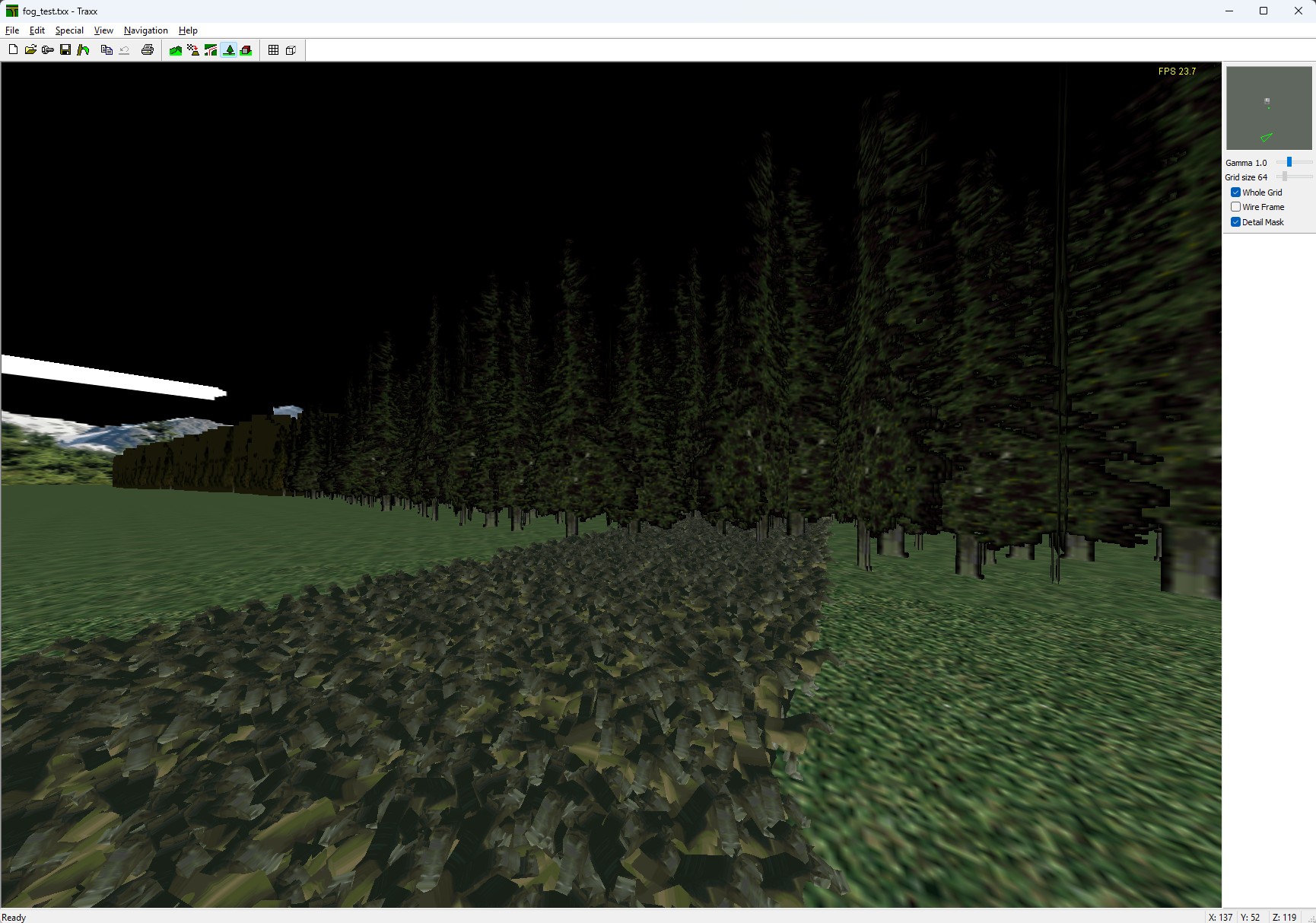
Special → Vegetation... plants thousands of trees and a carpet of grass without placing them one by one — and without using up the scenery-object limit: planted trees do not count against it.
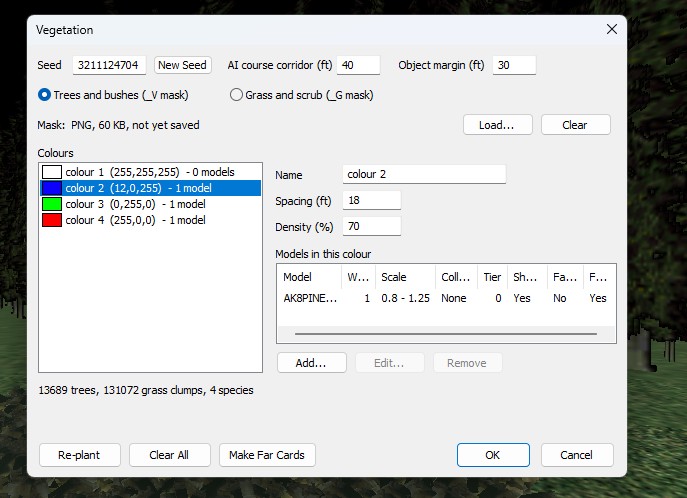
- Paint two masks over the whole map in any paint program: one for trees and bushes, one for grass and scrub. Each colour you paint is a kind of planting — “pine forest”, “birch edge”, “tall grass” — and black means nothing.
- Give each colour its models, up to eight, each with a weight in the mix, a scale range, random rotation, and whether a truck hits it: not at all, only its trunk, or the whole model.
- Re-plant fills the map. The same masks, rules and seed always plant the same forest; New Seed gives a different arrangement of the same mix.
- Planted with sense. Trees keep off the race course and the AI's line, the start grid and the checkpoint gates, scenery objects, raised ground boxes, water, lakes, and slopes too steep for them.
- Far cards, made for you. Far away, the game swaps each tree for a cheap picture of itself, so a whole hillside of forest stays fast. Make Far Cards renders those pictures from your own models, and the tree cross-fades into its card rather than popping.
- Seen in the 3D view as the game draws it. View → Vegetation shows the trees and the grass, washes your painted masks over the ground (the quickest way to check a mask lines up), and can show trunk collision and the clearances. OpenGL view only.
Three rules you will otherwise trip over. Paint the masks with a hard-edged brush — soft edges make in-between colours that match no planting, and Traxx warns when too much of the mask is unmatched. The tree models must be in the track's Models list first; the Vegetation window picks from it. And some models cannot be drawn in bulk (blended, glowing or animated ones): Traxx names them, and why, when you re-plant and when you write the pod. Limits: 16 colours per mask, 60 models in all, 30,000 trees and 131,072 grass clumps.
Lakes at their own height
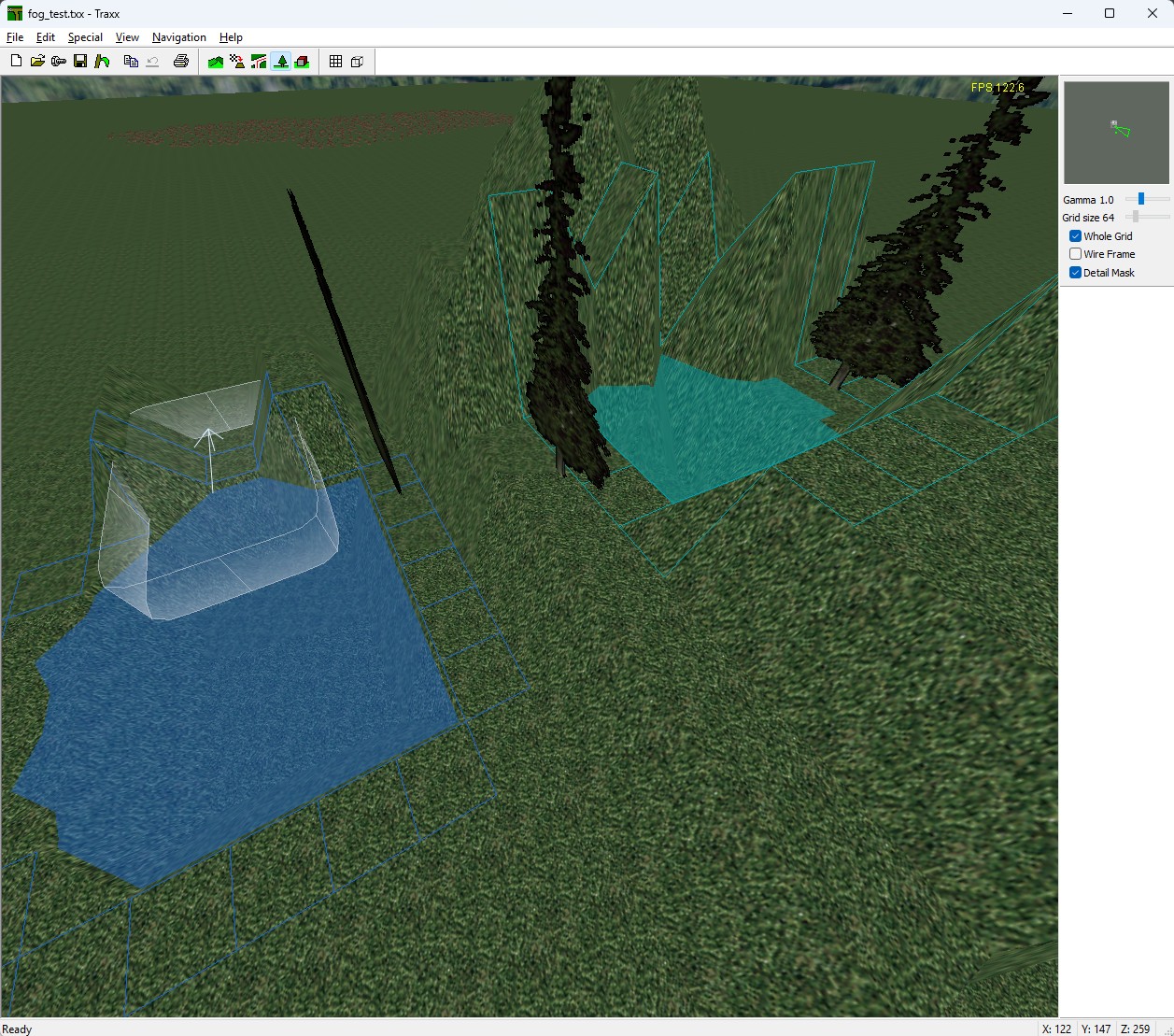
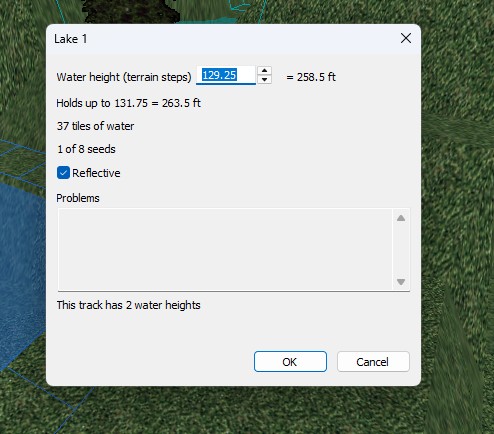
A track has always had one water level, flooding everything below it. Now it can also have lakes — a mountain tarn, a pond on a plateau, a reservoir behind a ridge — each at its own height. In Edit Terrain mode, right-click a square in the basin and choose Create Lake...: Traxx fills the basin to the highest level it can hold without spilling, and the Lake dialog lets you set the height, in quarter steps with the feet beside it. Right-click inside a lake to edit or delete it, or to add a second seed when one lake spreads over separate hollows.
A lake can never leak. The dialog will not take a height above what the basin holds. A terrain edit that would breach a lake's rim — brush, paste, random terrain, Adjust Terrain Heights — is cancelled with a warning naming the lake, rather than quietly draining it, and Write POD refuses a track with a broken lake, saying which and why. You cannot ship a leaking lake.
In the OpenGL view each lake is a see-through sheet in its own tint, and a lake with a problem turns magenta so it cannot pass for water. The game reflects two water heights, the main water counting as one; Traxx tells you how many a track has. A lake must sit above the main water and not touch it.
Models with their own grip
The current engine lets a large model the truck drives on — a road
section, a bridge, a stretch of map built in Blender — carry its own surface
types: cement here, dirt there, each with its grip, skids, dust and sound. That
travels in a small .SRF file beside the model, made by the model's
exporter rather than by Traxx. Traxx's part is to make sure it is never lost: it
packs the file automatically, tags such a model (surface) in the
Models window, and asks before writing a pod that would drop one the old pod
had. On the original game the model is driven on exactly as before.
Editing many things at once
Asked for by name, and the change a working author will feel most.
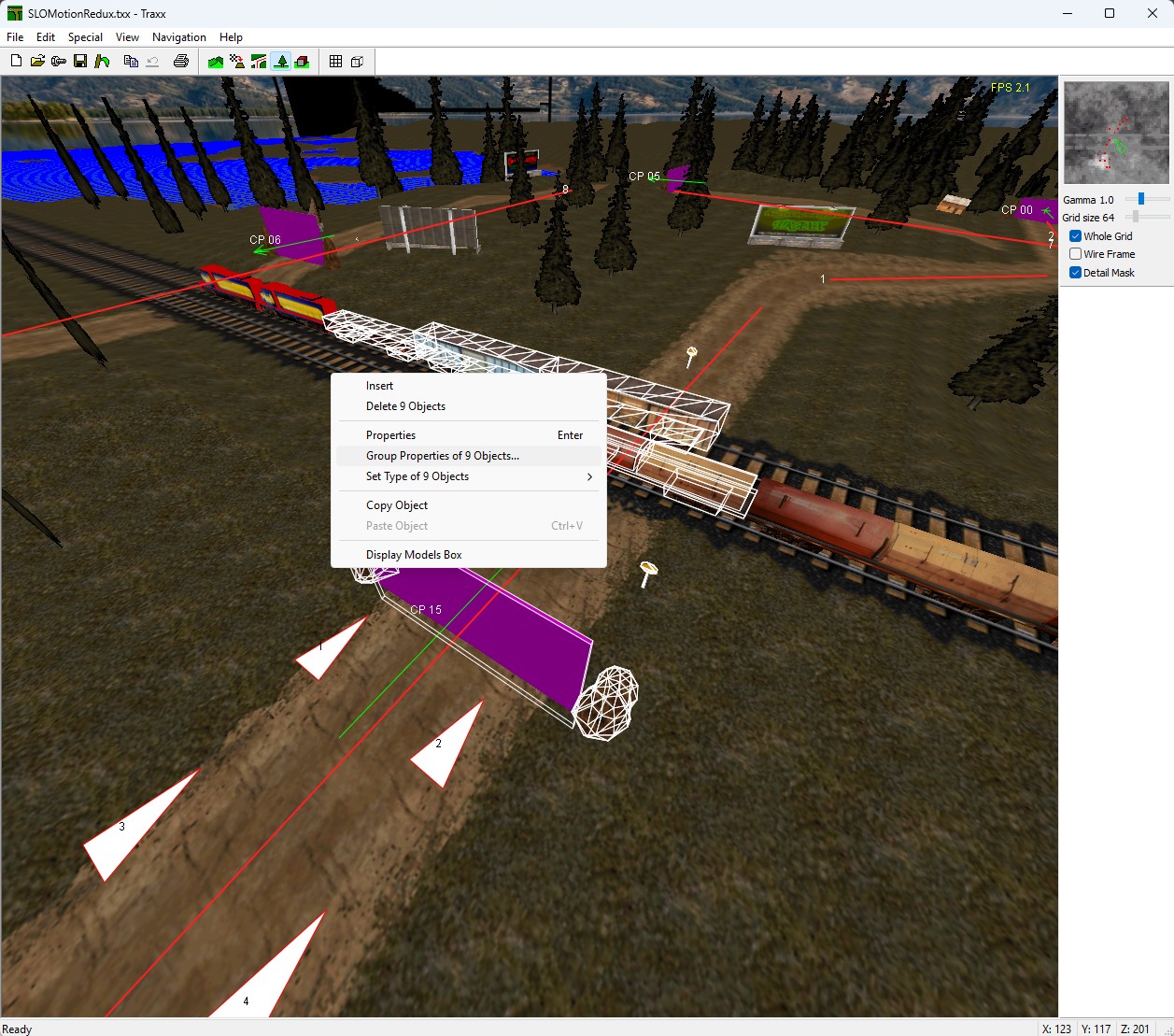
- Several models at once. Ctrl+click adds or removes a model, Ctrl+drag draws a box that takes everything inside, and the whole group then moves, raises, turns and tilts together — by keyboard or by dragging — each model keeping its place in the layout.
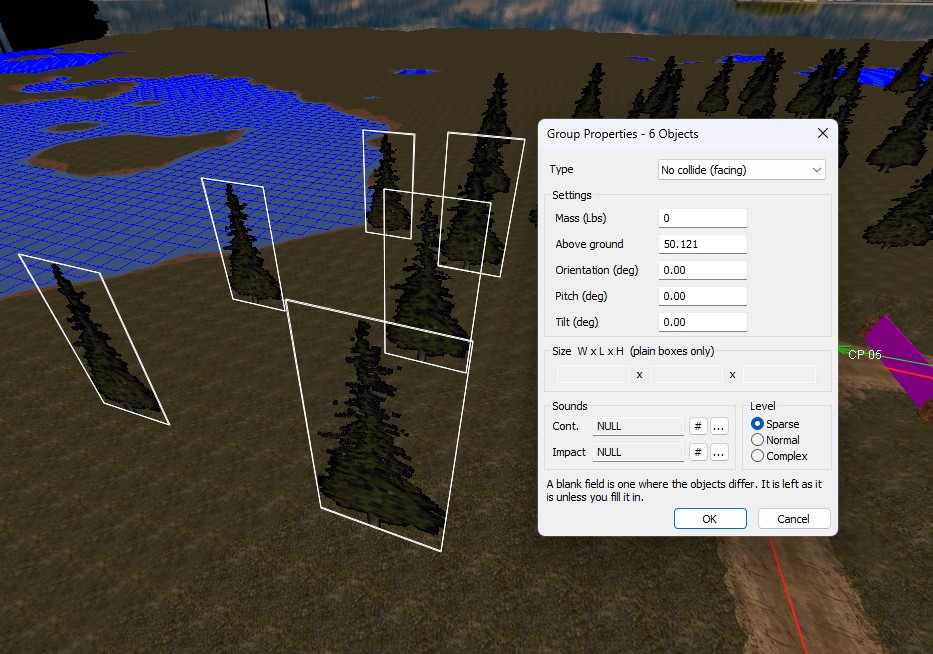
- Group Properties. Right-click the selection for Group Properties of N Objects...: type, mass, height above ground, orientation, pitch, tilt, size, both sounds and scenery level, for all of them in one go. A value they share is shown; one where they differ is left blank, and left alone unless you fill it in — so changing the mass of fifty objects does not flatten their headings. Height, angles and size show live in the 3D view as you type.
- Or just change the type of all of them (Set Type), put the same model on all of them from the Models window, or delete the lot after one question.
- Several textures at once. Drag a box across the Textures window to select a block of them — Shift adds more — and set texture type and grip depth for all of them together. The Textures window also scrolls with the mouse wheel now, which it never did.
- The track's limits still hold: converting forty objects to ramps on a track near its ramp limit converts what fits and says how many were left alone.
Exactly where you want it
- The keyboard works while Object Properties is open, and its finest step now matches the dialog's own arrows — a tenth of a unit, a tenth of height, a hundredth of a degree — so a model placed by keyboard can land exactly where the dialog could put it. Hold Ctrl+Shift with any of the object keys.
- Water levels in quarter steps, as the game allows (35.25, 35.5 ...), where Traxx used to offer whole steps only.
- Water you can see. In the OpenGL view the water is a see-through blue surface instead of a bare grid of lines, so you can see where it meets the bank and what sits under it. Its opacity is a setting, half by default.
- Adjust Terrain Heights (Edit menu) lifts the whole terrain or scales every height, with the lowest and highest heights shown before and after. Objects, starts and checkpoints can ride along with the ground, and the water separately — raising the land to make islands is a reason to leave the water where it is.
- Help → Keyboard Summary covers all of it.
Checkpoints you can read
Most checkpoints are built from the plain purple box, and until now it just said
“BOX”. Now every checkpoint is numbered — CP 00,
CP 01 ... — in the order the race counts them, so the sequence
around the whole course reads at a glance, and a plain checkpoint box shows an
arrow through it the way the race has to take it. Driving through one backwards
is the classic checkpoint mistake, and this is where you catch it. Rumbles only
number them, since the order is free there, and a selected checkpoint is outlined
as a selected model always was.
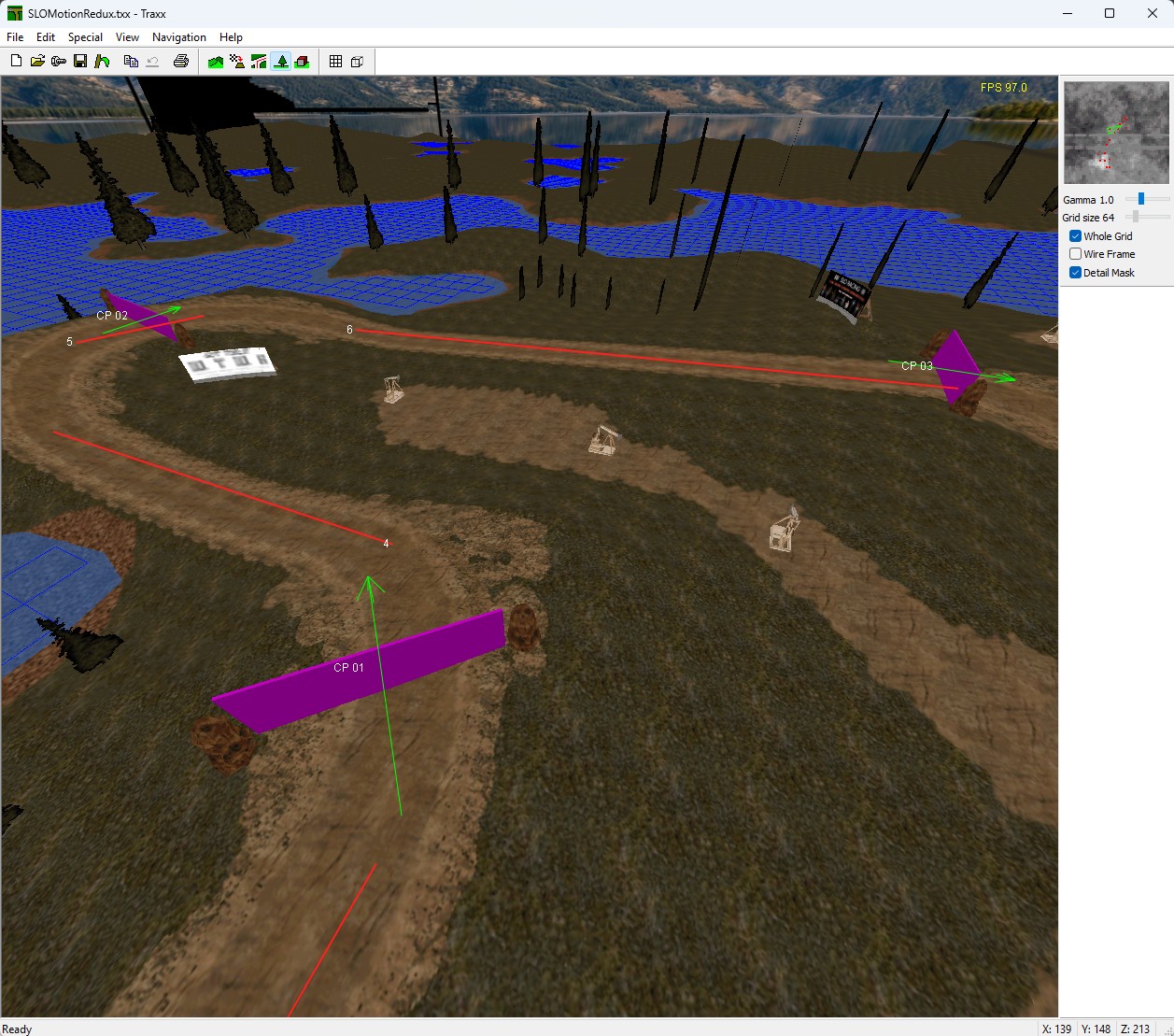
CP 01, CP 02, CP 03 in race order, with the green arrow through each box showing the way it must be driven.HD pictures for the game's menus
The three pictures a track shows in the menus — the list icon, the browse picture beside the track list and the info pop-up photo — can now be PNG or TGA at higher resolution, loaded in Track Components as the 8-bit BMPs always were, or pasted straight from a paint program. The game fits each picture into the same box whatever its size, so the one rule is the old shape: the browse picture at 257:210 (514×420, 1028×840 ...), the icon and the photo at 4:3. The icon stops at 128 pixels a side — anything bigger the game takes for a photo and shows the race-type icon instead. Traxx checks all of this when you choose the picture, and says why if it refuses one.
The HD pictures are what the current engine's menu draws. Traxx also writes the classic 8-bit BMP for the original menu, unless you untick “Also write 8-bit BMP copies”; the track stays listed and playable either way.
Smaller things
- World Name. The name a track's files are built from was always taken from the track name. You can now choose it — a short file name for a long track name — and it survives any later rename.
- Paste Composite takes true colour. Cutting one big image into a grid of textures now takes a picture copied from any paint program, or a PNG or TGA up to 8192 pixels a side, and cuts it into PNG, TGA or classic RAW tiles of any size from 32 to 1024.
- Ground boxes: the cell a new box would go in is outlined under the pointer, and the brush and the face under the pointer are bright yellow on every track, instead of thin lines in whatever colours the palette held.
- File → Open starts in the folder your tracks are in, and the Textures window can be set to go behind Traxx (View → Options, Advanced).
- Models edited in another program while Traxx is open are reloaded before the pod is written, rather than going in as the old version.
Modern art
Traxx imports PNG and TGA straight into the texture browser and packs
them into the pod alongside — or instead of — the legacy 8-bit
.RAW / .ACT pair.
- Tiles are no longer just 64×64 and 256×256. Any square power of two from 32 to 1024.
- Normal maps (
<stem>_N.png) and ambient occlusion maps (<stem>_AO.png) are packed automatically if Traxx finds them beside a texture. Drop the file in your art folder and it is carried into the pod — once, even where several objects share the same art.
You will not see those maps in the texture browser, and that is
deliberate. Traxx leaves _N and _AO files out of the
lists you paint terrain from — a normal map is not something you paint with,
and it would only be in the way. It still packs them. So if you drop one in and it
does not appear, nothing is wrong: it is found at pod-build time, not at paint
time.

ART\TEST1024.RAW selected. The
size field reads 256 / HD 1024 — the 8-bit tile the
legacy renderers get, beside the 1024 source that ships for DX11 and Vulkan. The
thumbnails cannot show you that; this field is where the program says it.Terrain detail and a painted mask
Two rows in Track Components — browsed and cleared like the backdrop or the info photo.
- The mask is a greyscale top-down image saying where terrain relief appears and how strongly.
- The detail normal says what that relief looks like.
They pack as ART\<stem>_DTL.png and
ART\<stem>_MASK.png, which is the whole point: without this you
would have to repack a pod by hand to use the feature at all.
And you can see the mask on the ground while you work. Switch on Detail Mask and the painted areas are washed over the terrain in the 3D view, at the strength you painted them. Without it, authoring a mask means painting blind in an image editor and loading the game to find out where it landed; this closes that loop inside Traxx.
It is deliberately indicative rather than a reproduction of the engine's shader. The question it answers is “did I paint the right places” — and a preview that disagreed with the game would be worse than no preview at all. OpenGL view only.


Traxx checks them as they load and ignores any that fail — oversized detail maps, sizes that are not a power of two, and the important one, a mask that is not greyscale. That last is the mistake that looks perfectly correct in an image editor and wrong in the game. A file that does not pass is simply not used, so if the ground looks untouched, check the map before you check the track.
DirectX 11 and Vulkan only. The DX9 renderer draws the track without terrain detail and is not scheduled to gain it. The engine-side settings live with the Community Patch, which is where the numbers are kept.


Things the engine gained, that you can now place
Lights
A light attaches to a model, and takes its aim from the box the model sits on. You set the radius of the pool it throws on the ground, its brightness — 1 is a headlight — the height above the object, an aim offset, a colour, and the length and spread of the cone.
Traxx draws both while you are editing: the pool as a cyan ring on the ground and the aim as a line out to it. Neither ships in the pod — they are there so you can place the thing.
The fixture and the light are separate jobs. The light is the beam and the pool, nothing else — no lamp model comes with it. You place whatever model looks like the fixture you want, and then attach a light to it here, in Traxx, and aim it. Nothing has to be done to the model itself: any model can carry a light, so the same one serves a streetlamp, a floodlight rig or a lit sign depending only on what you parked underneath it.

And the rest
- Moving boxes, the second new scenery box type.
- Top-crush objects, authored properly — both halves drawn the way the engine renders them, and the cap raised to 100.
- Ramps can carry a model. MTM1 tracks always did this and the MTM2 engine renders it, but Traxx used to drop the model name on load and turn such a ramp into a plain wedge when you saved. It round-trips now, and you can assign a model to a ramp deliberately.
Room to work
| was | now | |
|---|---|---|
| Textures | 512 | 1024 |
| Model textures | 1024 | 4096 |
| Models | 256 | 4096 |
| Scenery objects | 600 | 4096 |
| Sounds | 256 | 512 |
| Top-crush objects | 10 | 100 |
| Fog objects | — | 50 |
| Planted trees | — | 30,000 |
Filenames are no longer 8.3. Names you make run to 18 characters, and a name too long for that is refused where you type it — naming the limit — rather than being quietly truncated later into something that collides.
Eighteen is not what the pod format can hold. A pod entry has room for 23 characters of texture name and 20 of track name; 18 is what Traxx, BinEdit and C-Pod all agreed to hold to, so a name one of them accepts is never truncated by another — which is a broken track found by whoever opens it next. The format could take more; agreeing not to use it is what makes the guarantee. It caps what Traxx creates, not what it reads: a track already carrying a 19 or 20 character stem still opens, and still saves under the name it has.
The editor itself
The whole map on screen at once. The old software renderer only ever drew a camera-centred window of the terrain, sized by the grid-size setting — the full 256×256 was never visible, at any setting, in any version. Switch on Whole Grid and every tile is drawn wherever the camera happens to be, so you can see the shape of the whole track and find what you are looking for without flying to it. If you used Traxx before, this is the one you will notice first — and it is the picture at the top of this page.
- An OpenGL renderer for the 3D view, written by Kmaster. The software renderer is still there.
- Windows that resize and remember it between sessions: Textures, Models, Track Components, Object Properties.
- The Models preview is drawn in OpenGL, framed to the model, with zoom.
- Sub-unit placement. X and Y carry a fraction the way height always
did, so objects sit to 1/256 of a unit — the engine's own resolution.
Shown in
.SITunits too, if you are comparing against the file. - Modern file dialogs — resizable, searchable, with the folders pane.
- An in-game info pop-up: a 640×480 photo and a description, both authored in Track Components.
- Track versioning — every pod records which Traxx built it, in
DATA\<stem>.TXV. - Cylinders, top-crush records, ramps and pod bitmap names were each being lost or quietly rewritten by a load and save. They survive now.


Download
Nothing to install and no support files. The Microsoft runtime is in the zip beside the program, and OpenGL is part of Windows — so the MFC and CRT packages the older versions needed are not used by this one.
Windows 10 and 11. 32-bit, which runs on 64-bit Windows too.
A track that uses HD menu pictures, quarter-step water, fog, vegetation or lakes will not open in an older Traxx. Tracks without them still do.
Sorry, there is still no setup program, but it is easy enough:
- Download the zip above.
- Make a folder for it — anywhere you like. If you are upgrading, use the one you already have.
- Unzip everything into that folder.
- Make a shortcut to
Traxx.exeon your desktop or start menu. - Point Traxx at your art before you start. Open View → Options, go to Folders, and set Art and Models to the folders you keep them in. Nothing will load until those two are right, and it is the one step people miss.
Learning it
Traxx School is the quick way in: seven short lessons that build one oval circuit with a couple of checkpoints, from an empty grid to something you can drive. The finished track is there to download at the end if you want to open it up and see how it went together.
The guild keeps the long-form course — Traxx at the MTMG, 71 pages organised by subject rather than as a walkthrough: the working area, textures, terrain, models, ground boxes, circuits and rallies, and the errors you will meet. That is the one to keep open beside you once you are building your own.
Start with the School. That is the guild's own advice, not just ours — its first page says that if you are an absolute beginner you should use the original Traxx School before delving too deeply into things there.
Both were written for an earlier Traxx, so neither covers the newer features — HD art and pictures, terrain detail, Whole Grid, editing many objects at once, numbered checkpoints, lakes, vegetation, fog and lights. Everything else in them still stands.
Help and info
- The Traxx FAQ.
- A screenshot, longer description and system requirements.
- The MTM2 forum, for anything else.
Some tracks made with Traxx
- Cumbria 2.4 Mb
- Five tracks in one pod, all in the same world. Rally+ covers almost all of the terrain — a ten minute lap if you are good — and three more run on shorter segments of it. The fifth is a CNR version, with plenty of intersecting roadways.
- Vulture Peak 1.3 Mb
- Fast racing lines around a scenic road, with room to pass and some dirt alternates. Circling vultures, and a secret area where an uncomfortable Dr. Scrote is hiding out.
- Valley Of The Kings 2.3 Mb
- An Egyptian theme with tombs and pyramids, and quite a few textures — hence the size. Good for racing as well as looking at, with some tricky adverse cambers and jumps. There is a hidden tomb.
- Dr. Scrote's Volcano 1.0 Mb
- Made entirely in Traxx 1.2 plus a pile of TXBIN models. A long rally race that asks for a bit of everything.
- Chase The Dragon 914 Kb
- Made entirely in Traxx 1.2 beta, from scratch. A great one for serious racers, with some new sounds and animated graphics.
- The Lake 1.2 Mb
- Made in Traxx 1.1, from scratch, in two or three days — and a properly good track rather than a demo for the editor.
Other useful downloads
- MTM Screensaver 2.1 62 Kb
- Runs MTM2 and MTM1 tracks, with 3D accelerator support, a birds-eye view
option, music, backdrops, water and transparent models. Freeware. Unzip the
SCR into
C:\Windows, then pick it in the Windows screen saver settings. - TXBIN 7 Kb
- Makes flat rectangular BIN models — the MTM2 trees, the flames in Dragon.pod. Supports animated and transparent textures: type the texture names and click Save.
- TraxxTemplates 2 21 Kb
- Traxx files with corners and other texture composites already built from the standard tracks, so you can copy and paste instead of building them. Models are pre-loaded. Contains C98 and Farm Road.
- Fixed Backdrops 11 Kb
- Replicas of the stock MTM2 backdrops, corrected to remove the hall-of-mirrors effect. Instructions in the zip. With many thanks to Oliver Pieper.
- TXRAW 1.11 9 Kb
- View
.rawfiles in Windows Explorer and copy them to the clipboard, with no palette conversion. Handles 16×16 to 512×512 8-bit colour, and 1024×1024 8-bit and 256×256 16-bit greyscale.
Older versions, and the runtime files they needed
Kept because they are not archived anywhere else. None of the runtime files are needed for the current Traxx, which carries its own.
- Traxx 1.6.5 2.8 Mb
- September 2026. The first of the modern versions, before the work on the world around the track.
- Traxx 1.5.12 beta 293 Kb
- February 2005.
- Traxx 1.4 246 Kb
- Fully functional, and the same build registered users already had —
so there is no need to download it again if you have it.
It still asks for a code on first run — it was built while
Traxx was still a paid program — and these are the ones to enter:
name
TRAXX, keyATOVBOGR. The original ReadMe is in the zip, registration notice and all. - MFC and CRT runtimes for the two above
- MFC42.zip ·
MFC71.zip ·
MSVCR71.zip ·
MSVCRT.zip
Unzip into your Traxx folder if you get “required DLL not found” or an MFC42.DLL error.