
Cowpod needs to know where the game is. That is the folder holding monster.exe, your pod.ini and system\monster.ini. Everything else on this page is measured from it.
If cowpod is sitting in that folder it works this out on its own and you never have to think about it, which is how every version up to 1.0.1 always ran. If you would rather keep cowpod somewhere else — a tools folder, the desktop, a memory stick — open menu > edit > set paths and set the main game folder at the top of the window.
Leave it blank and cowpod uses whichever folder it is sitting in, exactly as before. Changing it reloads everything: the game version, pod.ini and the pod list.
If you have 800 pods in your mtm folder, then it's very likely you will never need the extra paths feature of cowpod. However, I know many people, myself included, who have zero pods in the mtm directory. Some people even have pods saved on the desktop, of all places. I have separate locations for traxx, binedit, tracked2, and the game. Using the paths, I can easily mount up and test whatever I'm working on without the need to copy files all over the place and waste space with two and three (or more) copies of the same thing. Or, maybe you're just an organizational fiend who has all sorts of weird working configurations for your pods. The path feature in cowpod will cater to even more strangeness. The game can be on drive c: and your stock tracks on d: and your favorite list on e: and some beta tests on g: or whatever. And you can do it without notepad and without programs like "pathcopy". The path option adds flexibility and ease, if that's the sort of thing you do. It's that simple. If, on the other hand, you don't slice up your hard drive like a pizza, or you keep all your pods in sub folders off the game folder, then you can safely ignore the extra paths options. It's there if you want it. But it's not a required option. It's all about organization, how you work, what you're doing, and personal preference. This stuff, extra paths, could always be done before, but it was always a pain to do. Now, it's as easy as using any other pod mounting program.
Before getting down to the nitty gritty, a word about pods in sub folders might be helpful. Some programs, like PodIt, will read pods in the game folder and it will also read pods in sub folders in the game folder. This is a very handy way to help organize your pod files. Cowpod will do this too. However, while Podit will read files in the next level of folders, Cowpod will read the files in all sub folders, no matter how far away from the game folder they are. For example, Podit will read pods in an "addon" folder.
C:\Program Files\Microsoft Games\Monster Truck Madness 2\addons
And it will read pods in a "trucks" sub folder
C:\Program Files\Microsoft Games\Monster Truck Madness 2\trucks
In fact, it will read pods in as many sub folders as you have. But, it only goes one layer deep. Cowpod, on the other hand, will read pods anywhere below the game folder. For example:
C:\Program Files\Microsoft Games\Monster Truck Madness 2\addons\circuits
C:\Program Files\Microsoft Games\Monster Truck Madness 2\addons\rallies
C:\Program Files\Microsoft Games\Monster Truck Madness 2\addons\drags
Or, again...
C:\Program Files\Microsoft Games\Monster Truck Madness 2\trucks\replicas
C:\Program Files\Microsoft Games\Monster Truck Madness 2\trucks\customs
C:\Program Files\Microsoft Games\Monster Truck Madness 2\trucks\repaints
And cowpod can read deeper than that, if you want it to.
C:\Progra\....\Madness 2\trucks\replicas\bigfoots
C:\Progra\....\Madness 2\trucks\replicas\gravediggers
C:\Progra\....\Madness 2\trucks\replicas\theRest
So, if this extra little bit of folder depth offers enough pod file organizational choices for you, then you don't need the extra paths of cowpod. However, if after all that flexibility you still want more, then the extra paths are just the ticket for you.
Open cowpod like normal. Notice the stock pods on the left and the empty selection list on the right. You of course may have more pods in your game folder than I currently do for this tutorial.
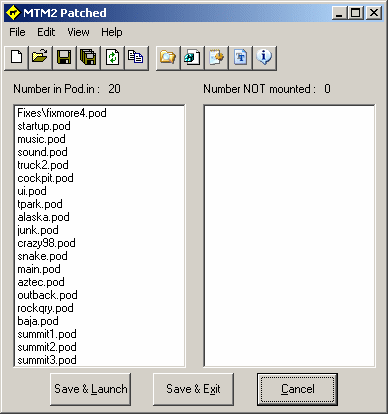
Now, goto the menu > edit > set paths, or click the path button  on the toolbar. The path options box will come up. Click a [...] button.
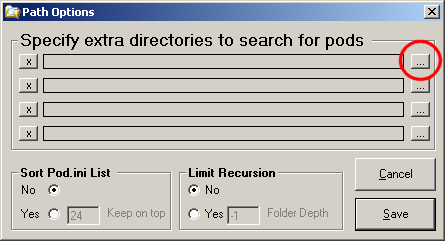
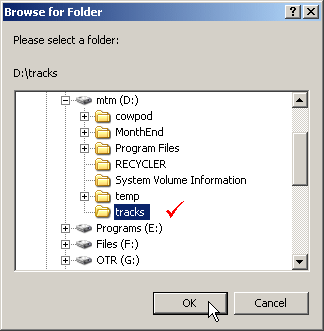
Browse to the folder you want (the one where your pods are) and click OK.
You will see the full path to the directory you just selected appear in the path options box. Click the save button.
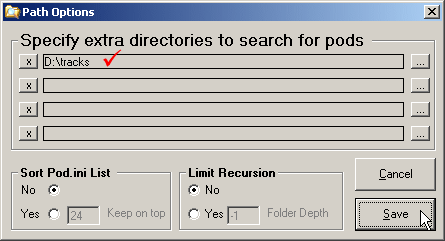
Voila, all the pods in that folder will now be available to cowpod and to the game.
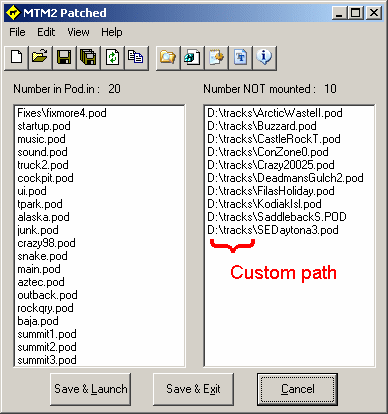
Select the tracks and trucks you want to use and start your game.
Recursion is just the techeze word that means to read sub folders repeatedly. When making the change to cowpod you may discover that pods show up in the list that were previously hidden from view because they were too deep in sub folders to be detected by other pod mounting programs. But since cowpod reads multiple sub folders they are now in full view. Sometimes, this may not be what you want and so you might rather cowpod not read so many sub folders after all. The fix is easy. Open the path options box. In the lower middle section, you will see options marked "limit recursion."
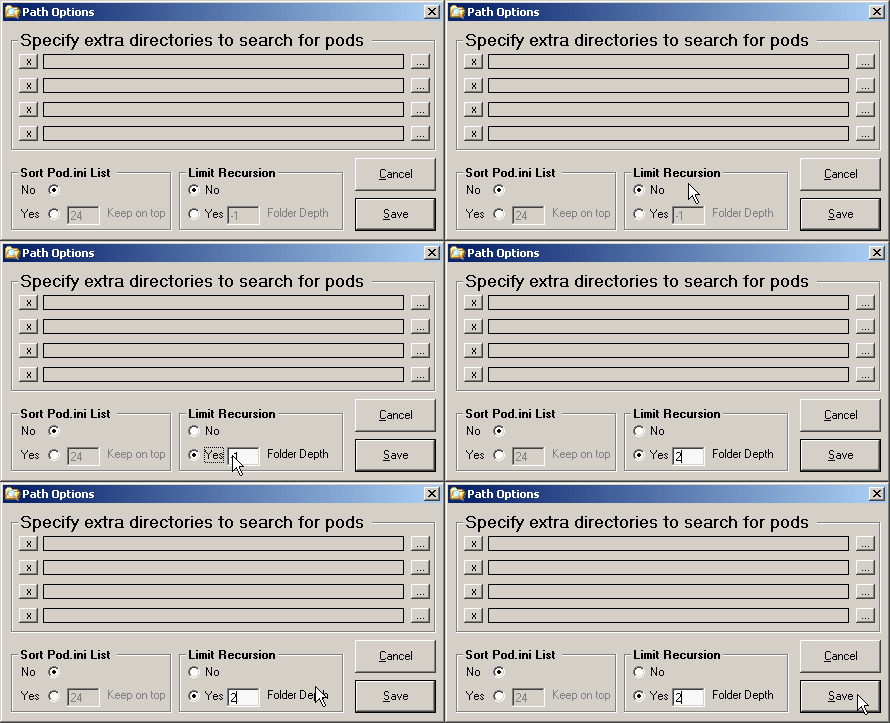
When you first run cowpod, it is set to read ALL sub folders. That is, don't limit anything. But if you click the "yes" button you can limit how far cowpod will look for pod files. Setting it to zero will restrict the pod file search to the current directory (and the root of user paths). Setting it to one, two, or three, etc. will indicate to look that many sub folders beyond the currect one but to look no further after that. The limit is set for the program folder and for user paths too. The bottom line, however, is that you have complete flexibility and control over what you do.
Pods found in a folder you added are listed with their path relative to the game folder, so you can see at a glance where each one lives.
That also means two pods with the same filename in different folders both show up and you can tell them apart. Cowpod will not hide one because another folder happens to hold a file by the same name.
Read enough folders and sooner or later two of them hold a pod with the same filename — an old main.pod in one place, a newer one somewhere else.
The game does not compare folders. It loads the first pod of that name it comes across and ignores the rest, so mounting both spends one of your pod slots on a file that never loads.
Cowpod points them out twice over. Any pod whose filename also turns up somewhere else is shown in red with a bar down the left, and if you go to mount one whose name is already mounted, cowpod names both files and asks whether you meant to.
It is only a warning. Mount both if you have a reason to — you just know now that one of them will not load.
To delete a path click the [x] button to the left of the one you want to get rid of.
The path(s) you set can be anywhere.
Monster truck madness 1 and 2 will NOT read files, folders or directories with spaces in the name. Therefore, cowpod will truncate the path to the shortened DOS version. This is nothing you need to be concerned about. It's all done automatically in order to make things work properly.
When you click a pod name from a path that you set, the whole path and all will be added to the pod.ini list. This is as it should be. Cowpod will sort out what is in the game folder and what is in your custom paths. The game will work with it all.
Just as cowpod will read sub folders off the game folder, so it will do the same thing for user set paths. You do not need to set all sub folders individually. Just set the main one, and let cowpod do the rest. For example.
Is it for everybody? No. But it's easily ignored too.
