VectorSlope
The 3D preview
Switch the large view to 3D to see your maps in the game's lighting. Drag to
turn the view; Reset view goes back to the start.
Three modes
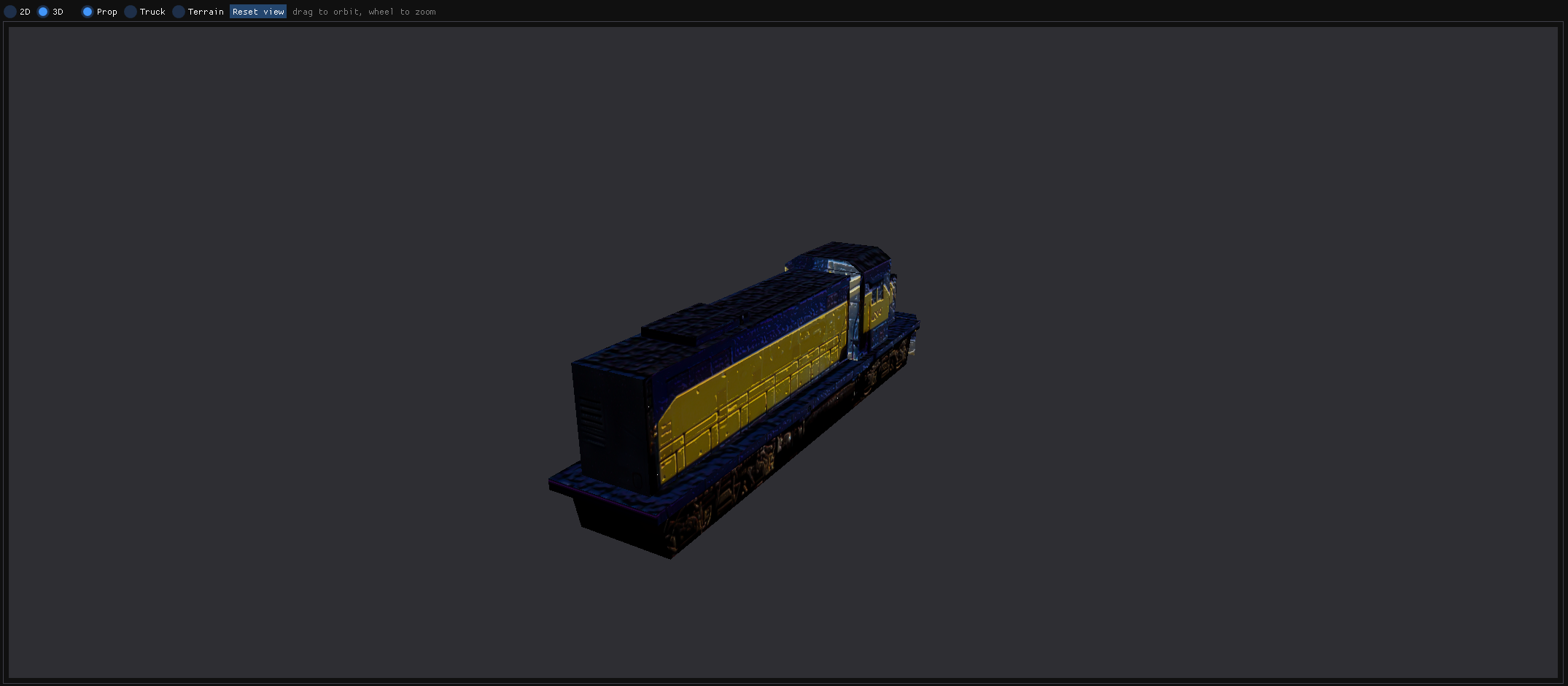
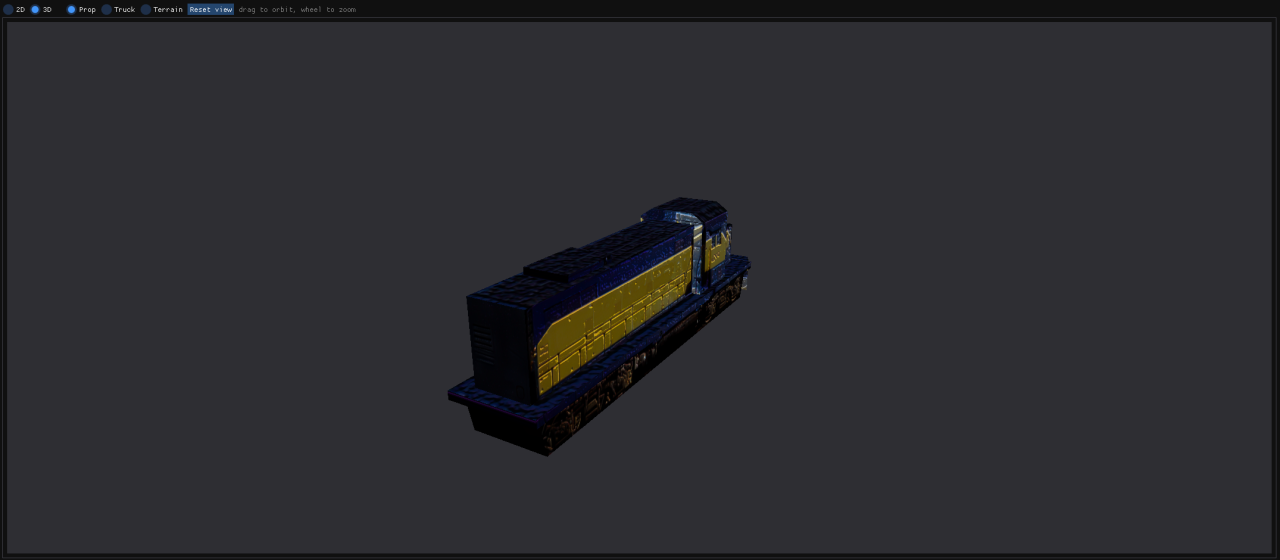
- Prop — the texture on a game model. The Models list shows the
models that use the texture you have open (“12 of 840 models use
tp8trn”), so you can try it on each of them. The other textures on the model are
the game's own, so you see your work next to the stock art. Open .bin... opens
any loose model; without a game folder the texture you are editing shows on it and its
other textures show as missing.
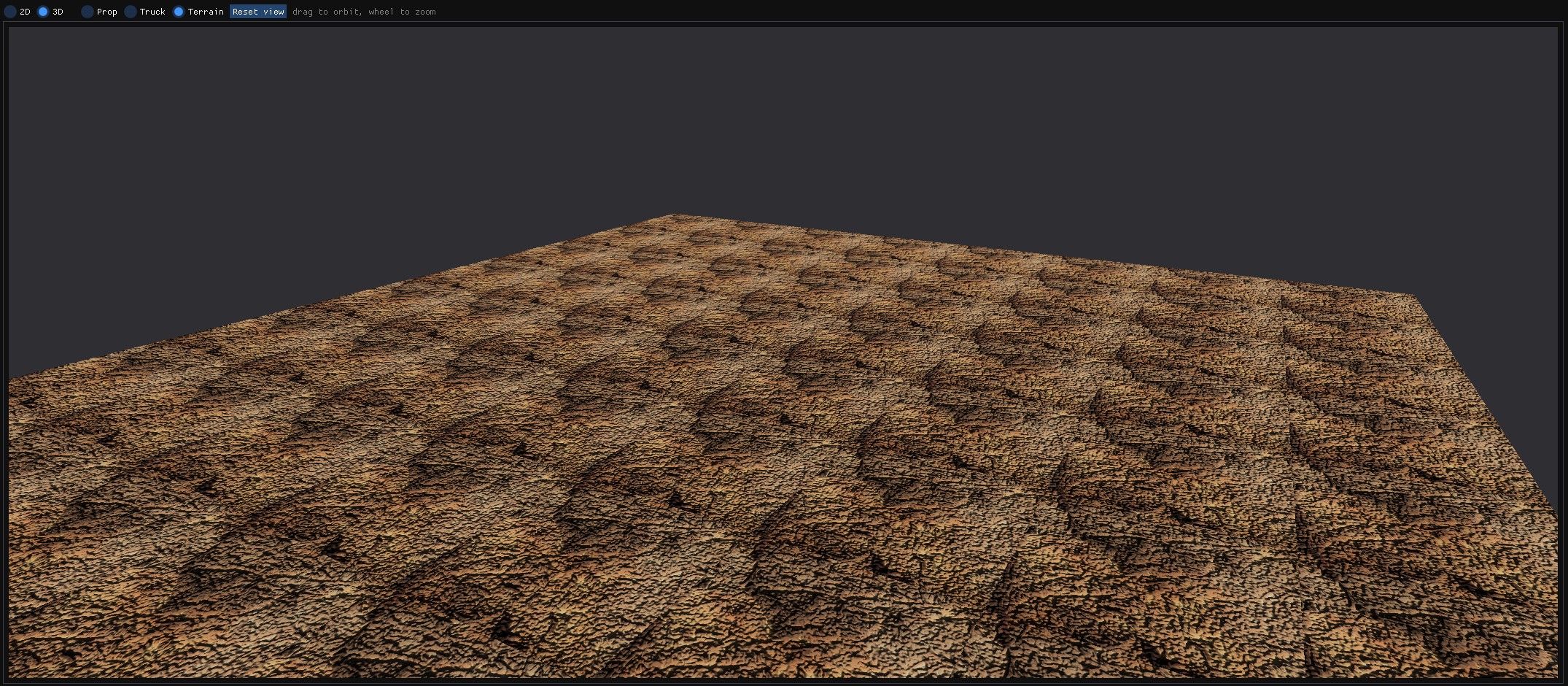
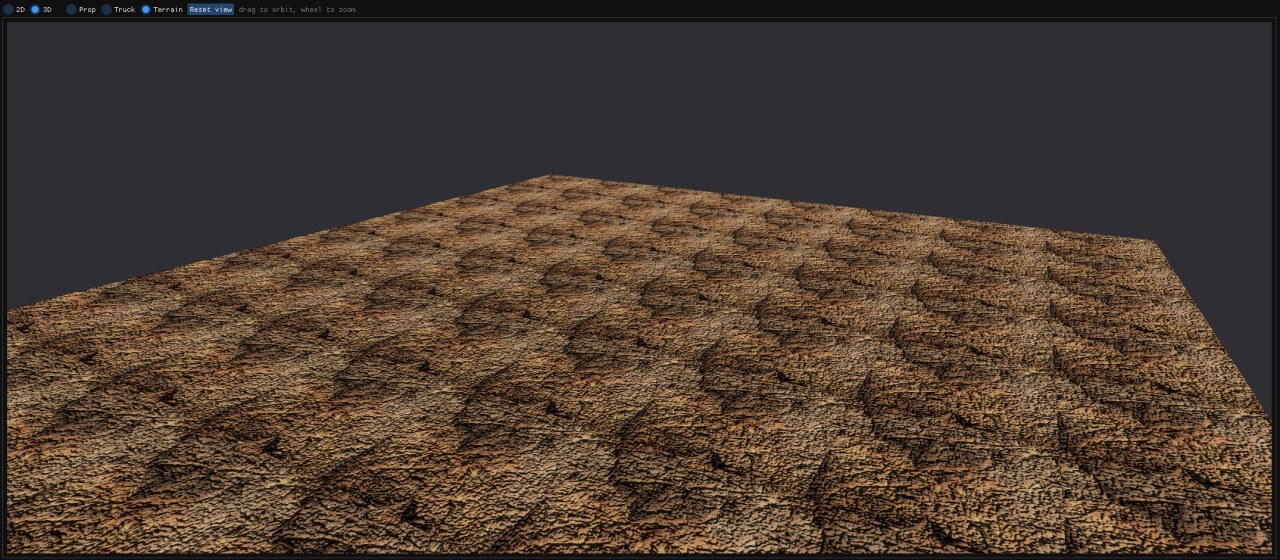
- Terrain — the texture laid out as ground, with the terrain's own ambient
level.
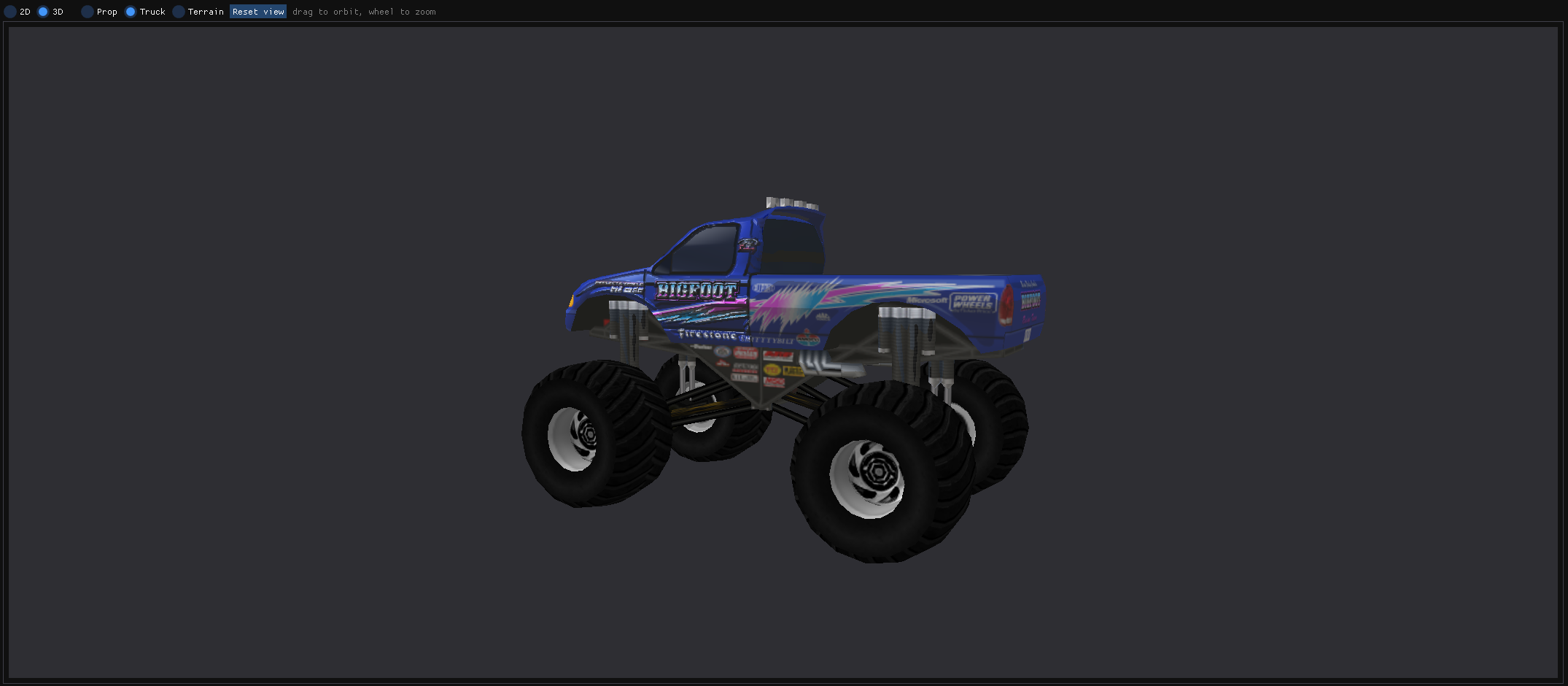
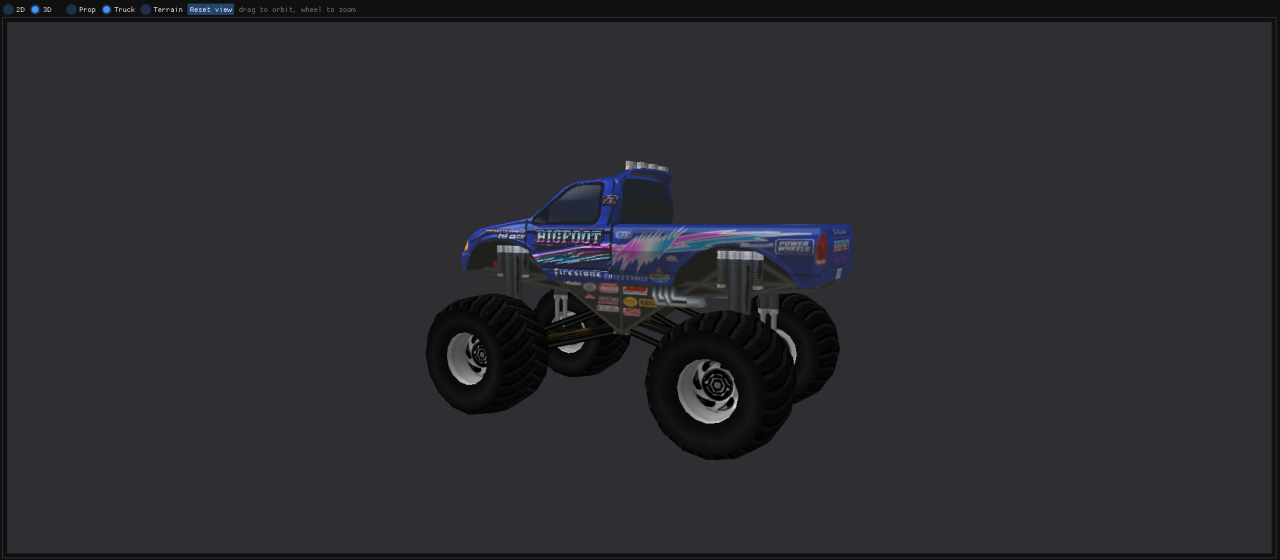
- Truck — a whole assembled truck. The Trucks list shows the trucks
whose parts use your texture, including the shock and axle-bar textures. Truck mode
needs the game folder or a Work folder. Truck reflections and Ground
plane turn the reflection and the ground on or off.
The first search for models or trucks that use a texture reads every model or truck
once, with a progress bar, then remembers the result. It searches again when the game
folder, the Work folder, Prefer loose files or the located textures change.
Lighting
- Sun azimuth and Sun elevation — where the sun is.
- Ambient — the light that is everywhere. Props and trucks share one
value; the terrain has its own. The truck's suspension strips keep the game's fixed
level.
- Normal strength — how strongly the game applies the normal map. The
game's own default is shown under it, with where it came from.
- Use specular mask as _N alpha — shows the specular mask's effect on
trucks.