
BinEdit Tutorial 1 - Model Moving

Homepage: http://binedit.com
Post Reply
User avatar
TlathamXmahtalT
Member
Posts: 702
Joined: Sun Jun 08, 2008 7:46 am
Location: In BinEdit, using YOUR models.
Contact:

BinEdit Tutorial 1 - Model Moving

Post by TlathamXmahtalT »

Since I figured out how to do this, I will show you how. I know I've only been a truck maker for a month now, but I want to share this tutorial with you.

I don't have the fancy Windows Vista, but Windows XP works fine. :)

I will show you a tutorial on how to move objects easily in BinEdit if you want to add parts to a chassis. You can use any model with any chassis. I will start by using White's Patrick Chassis. I deleted the driver, shocks, and all the parts for the chassis and I made a different one for just the engine.

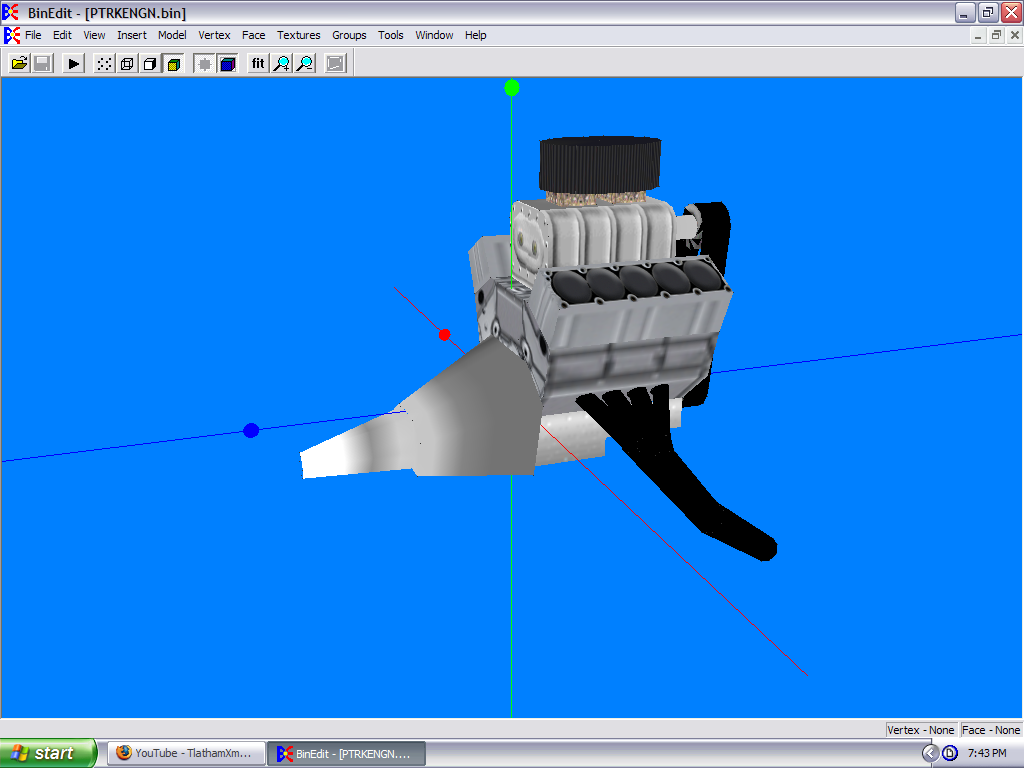
We will start with your basic engine.
Image

Now, as you can see, this is just an engine. We will add it to a chassis.

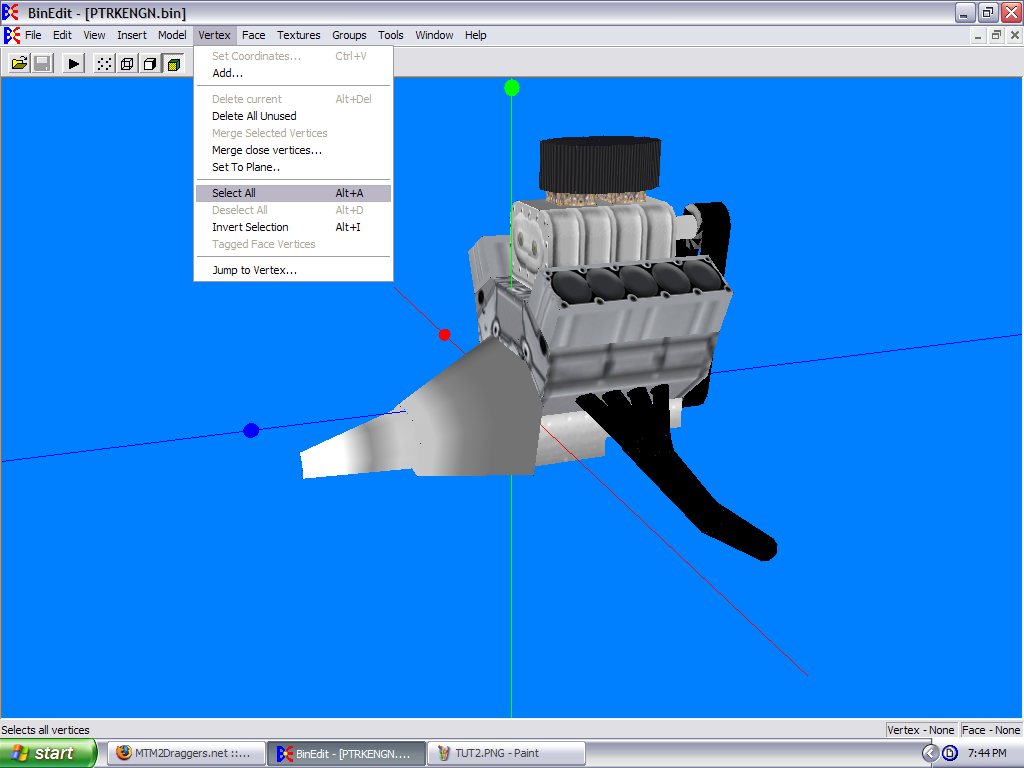
First, you select "Vertex", and click "Select All."
Image

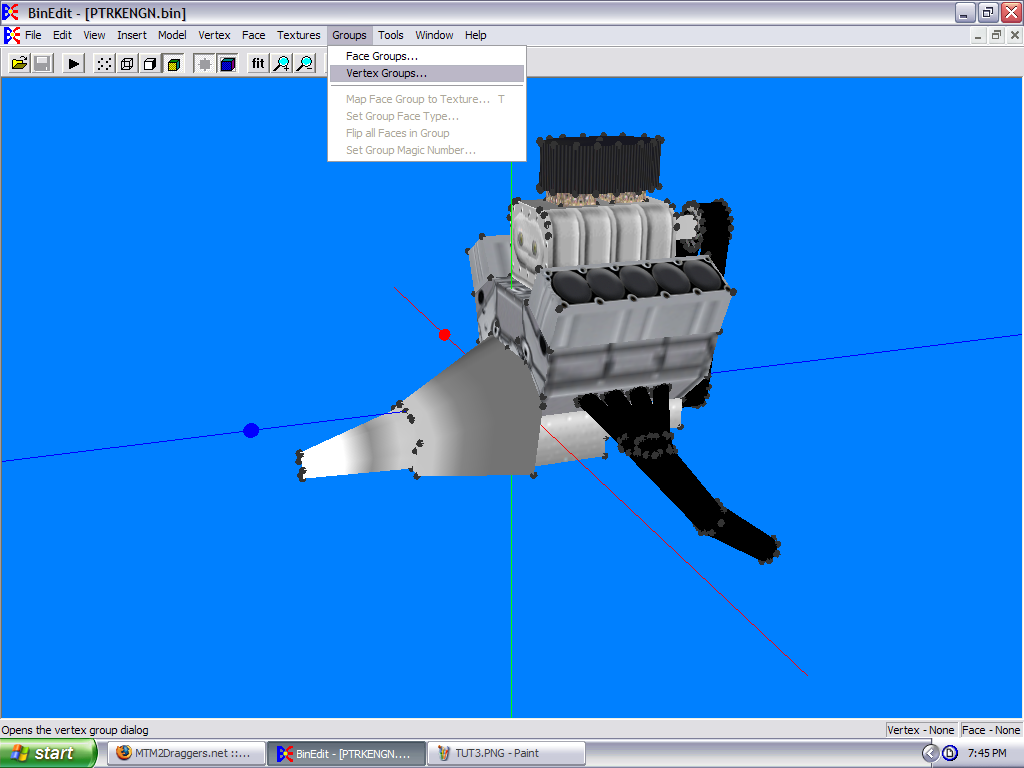
Next, click "Groups", then "Vertex Groups."
Image

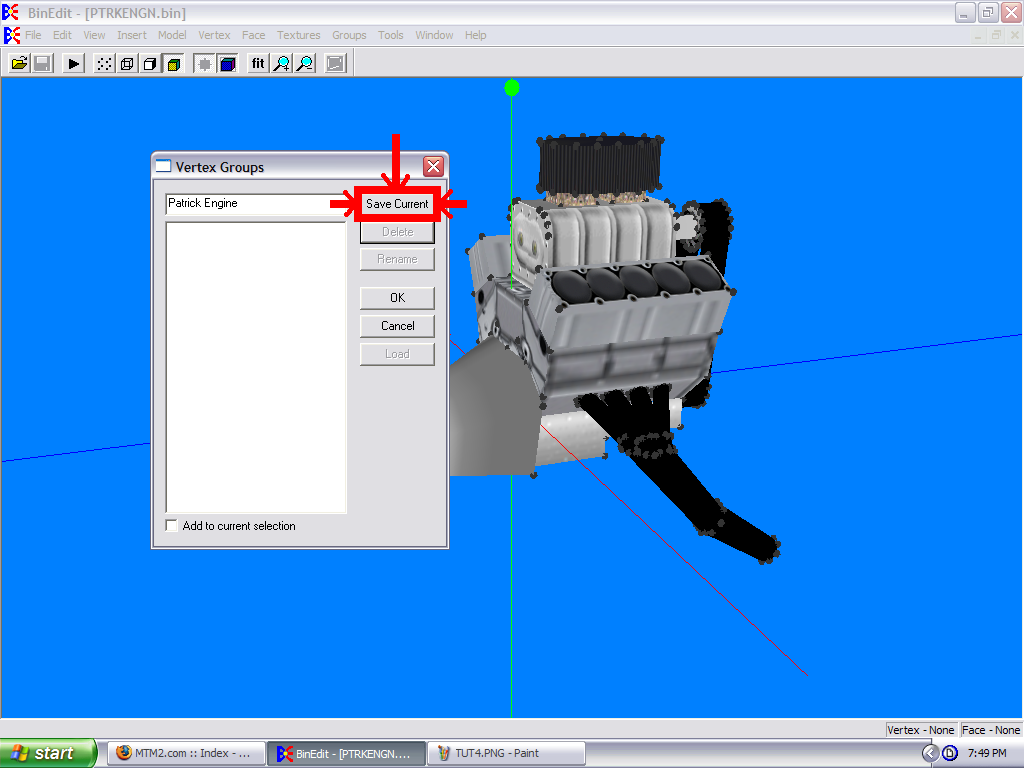
Then, make a name for it and click "Save Current."
Image

Click the small gray "X" in the corner. If it asks you if you want to center it, don't do it. More work for you if you do.

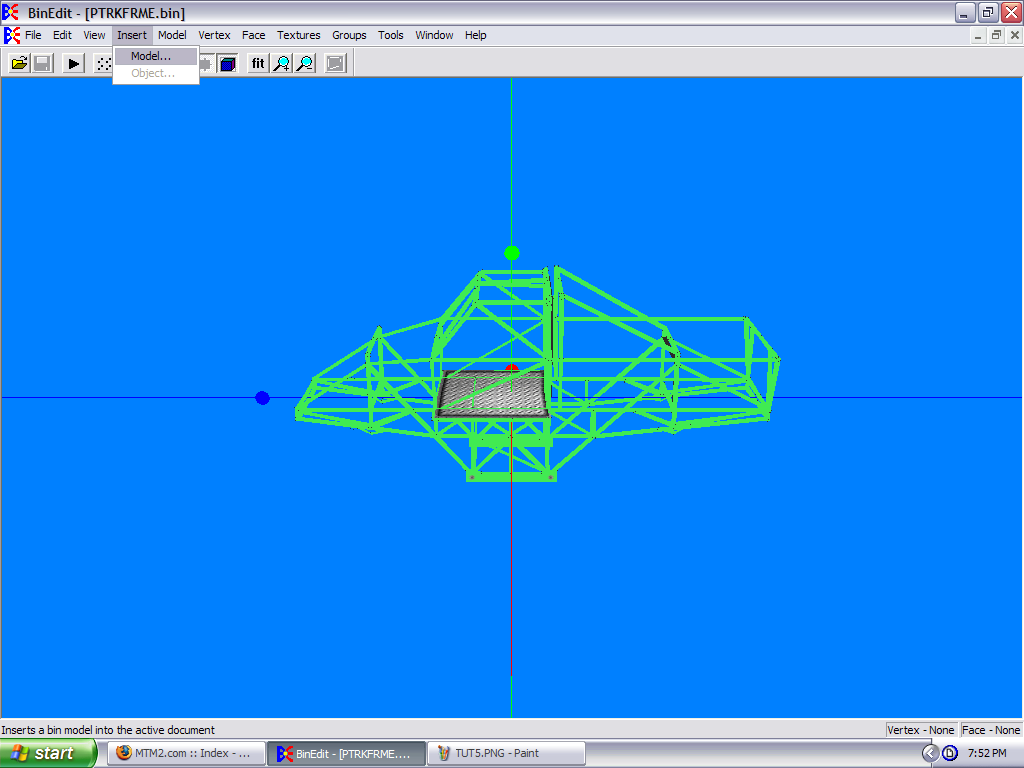
Now, we will use the chassis model. Click "Insert" and then click "Model."
Image

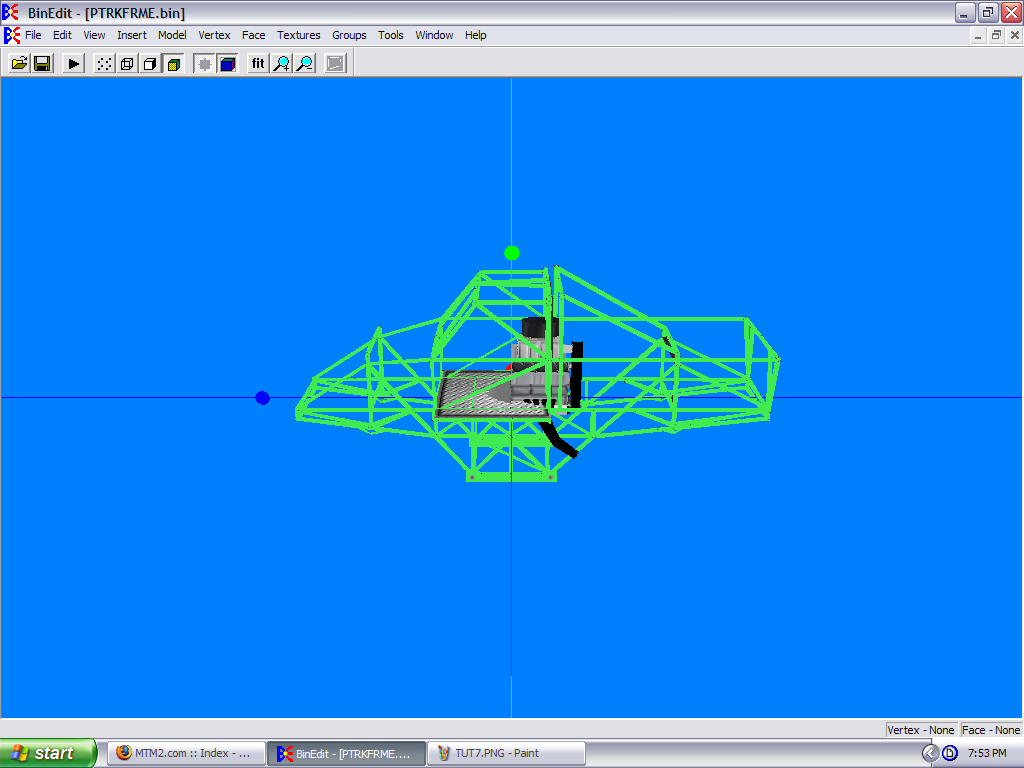
Choose the engine model that you want to use and click "Ok."
Image

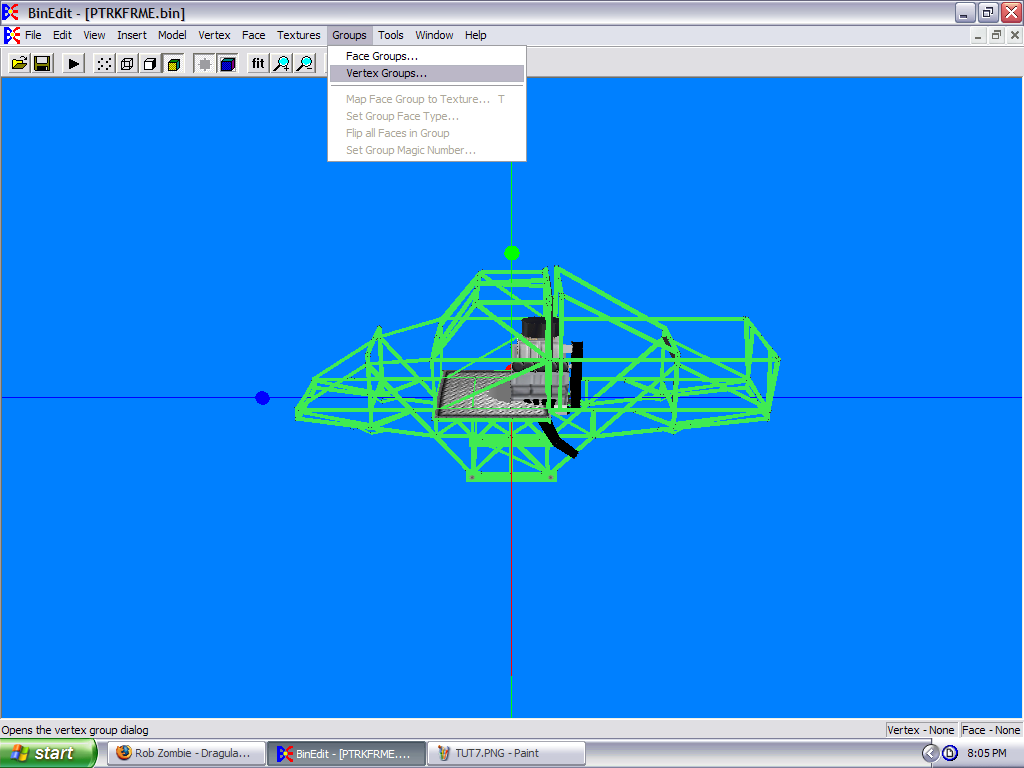
Now, as you can see, the engine is not where it is supposed to be. Since we want to move it, here's what you can do. Go to "Groups" again, and click "Vertex Groups" again.
Image

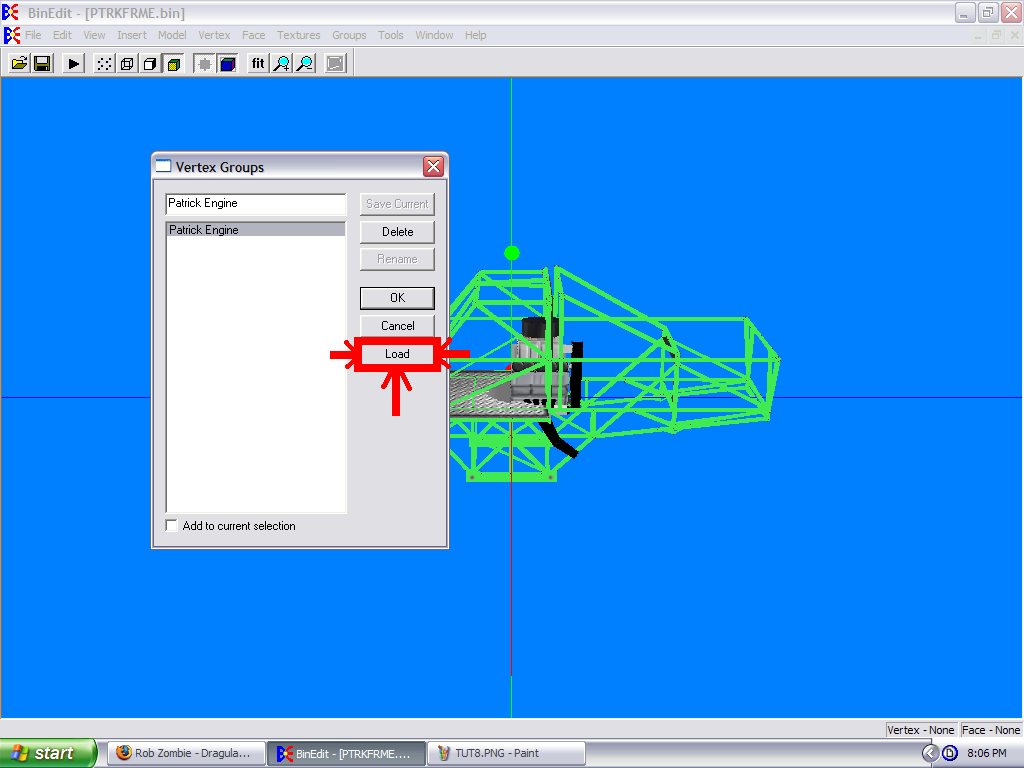
When you get there, click the group name, and press "Load."
Image

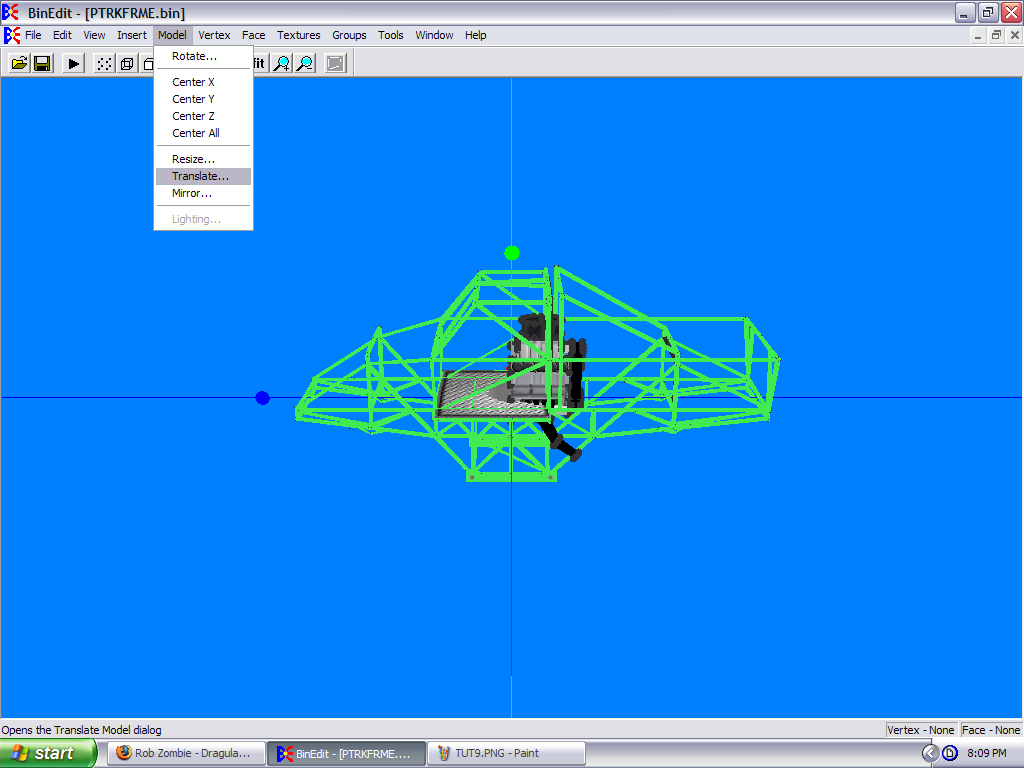
Now, click "Model" then "Translate..."
Image

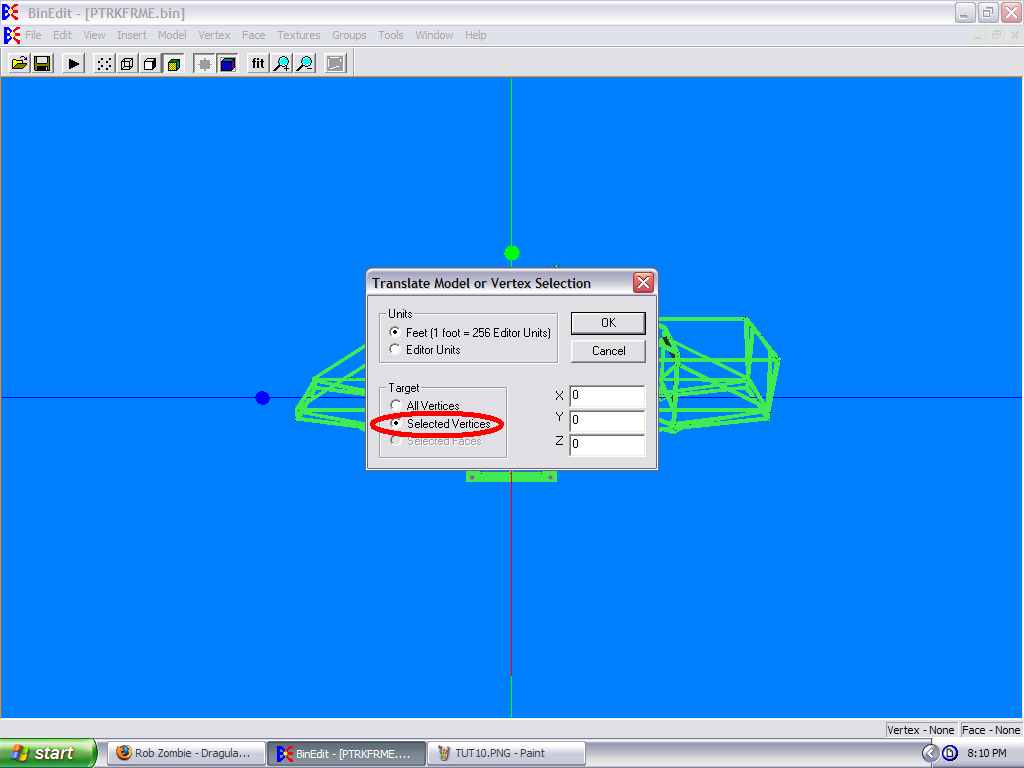
When you get there, make sure that the "Selected Vertices" bubble is clicked. If not, the whole model will move.
Image

When you get to this step, you can move it to the back of the chassis (Or the front like Max-D if you wish), and you can have a chassis with an engine. You can use any model with this, as it works the same way.

The keyboard map window has a list of all the keys you can use to move the model around without using the translate page too. ALT + x, y, or z will move the model accordingly. ALT + Shift + x, y, or z will move the model the opposite direction. You just have to "Select All" or Select the vertices group first.

———————————————————————————————————

Note 1: This also works with bodies.

———————————————————————————————————

Note 2: If it doesn't cover everything, just tell me and I will edit the tutorial.
Last edited by TlathamXmahtalT on Sat May 16, 2009 10:40 am, edited 2 times in total.
User avatar
Roadknight
Member
Posts: 614
Joined: Mon Dec 17, 2007 1:42 pm

Post by Roadknight »

I don't have the fancy Windows Vista, but Windows XP works fine. :)
Lol, fancy? I think the opposite. [:P]
User avatar
TlathamXmahtalT
Member
Posts: 702
Joined: Sun Jun 08, 2008 7:46 am
Location: In BinEdit, using YOUR models.
Contact:

Post by TlathamXmahtalT »

Lol... It looks fancy, I'm not talking about performance because I've never tried it.
User avatar
Roadknight
Member
Posts: 614
Joined: Mon Dec 17, 2007 1:42 pm

Post by Roadknight »

Trust me, you don't want to. My nephew has it, he says it's the slowest operating system ever.
User avatar
TlathamXmahtalT
Member
Posts: 702
Joined: Sun Jun 08, 2008 7:46 am
Location: In BinEdit, using YOUR models.
Contact:

Post by TlathamXmahtalT »

LOL, probably because of all the graphics and good looks.

My nephew has it too (Awkward), and when his mom (My Sister) gets on, she gets in a bunch of chat rooms, and it slows it down MAJORLY.
User avatar
white2098
Member
Posts: 496
Joined: Sun Nov 03, 2002 2:01 pm
Location: carmel, california, usa

Post by white2098 »

Good job on the tutorial, but you did miss one pretty important aspect.

The keyboard map window has a list of all the keys you can use to move the model around without using the translate page. ALT + x,y, and z will move the model accordingly. ALT+Shift will move the model the opposite direction.

Good job though, it's always good to have tutorials :P
User avatar
TlathamXmahtalT
Member
Posts: 702
Joined: Sun Jun 08, 2008 7:46 am
Location: In BinEdit, using YOUR models.
Contact:

Post by TlathamXmahtalT »

Thanks, and I didn't know about that.

I like how you made the pipes on the engine go around the chassis pipes on the original model. That caught my eye fast when I was editing it.
User avatar
white2098
Member
Posts: 496
Joined: Sun Nov 03, 2002 2:01 pm
Location: carmel, california, usa

Post by white2098 »

haha, that was actually an accident. I forgot to make an opening for the pipes so I had to mold them around the frame as a last resort. Glad you like it though [nyuk]
User avatar
TlathamXmahtalT
Member
Posts: 702
Joined: Sun Jun 08, 2008 7:46 am
Location: In BinEdit, using YOUR models.
Contact:

Post by TlathamXmahtalT »

white2098 wrote:haha, that was actually an accident. I forgot to make an opening for the pipes so I had to mold them around the frame as a last resort. Glad you like it though [nyuk]
Lol, it looks more realistic that way. Adds to the detail too.
User avatar
Malibu350
easy company
Posts: 2036
Joined: Tue Feb 29, 2000 2:01 pm
Contact:

Post by Malibu350 »

coo! stuff :)
Post Reply